
Send an automatic message
An automatic message sends a template to a contact at the right moment: when a tag is added to them (for example “VIP”) or when they reach a stage (for example “Customer”). Each contact only receives it once.
Steps
- Open Sales › Campaigns, Automatic messages tab, then click New automatic message.
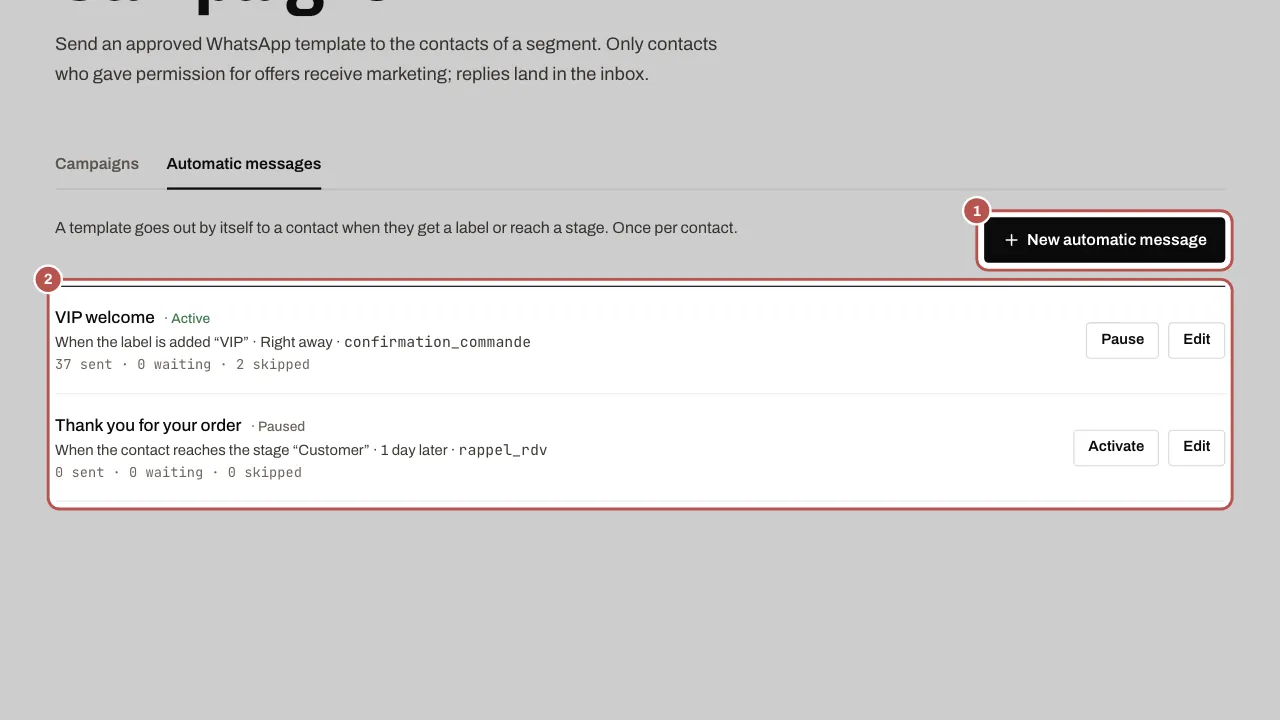
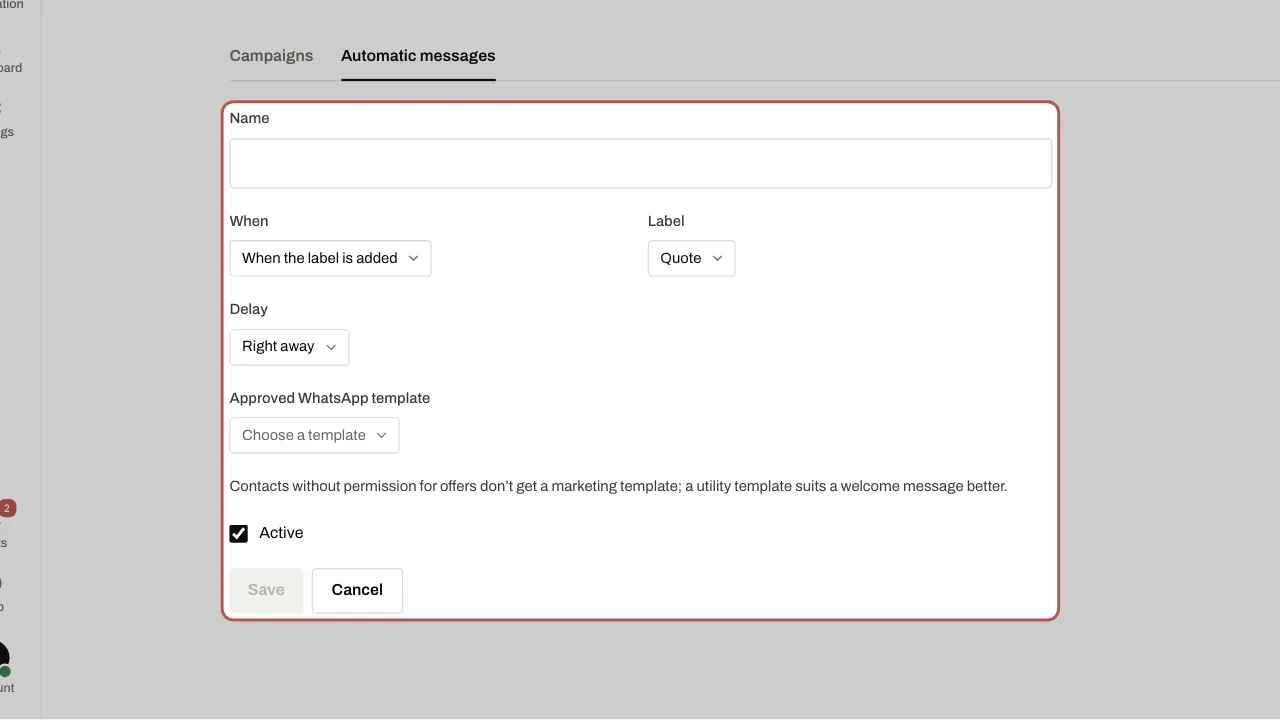
- Give it a name and choose When: a tag added, or a stage reached.
- Choose the delay: straight away, 1 hour, 1 day, 3 days or 7 days after the event.
- Choose the sending number, the approved template and its variables, tick Active and save.
Related articles
- Import your contacts and their permission for offers The Contacts screen brings together all your contacts, whether they come from a conversation or a file.
- Prepare a template for your campaigns A WhatsApp campaign always sends an approved template. Create it in Sales › Templates, pick Marketing or Utility and send it to WhatsApp for approval.