
Prepare a template for your campaigns
A campaign always sends a template approved by WhatsApp. If the campaign offers no template, or only Meta’s test sample (“hello world”), you need to prepare one first.
Steps
- Open Sales › Templates and click New template. To save time, start from an example in the Library tab.
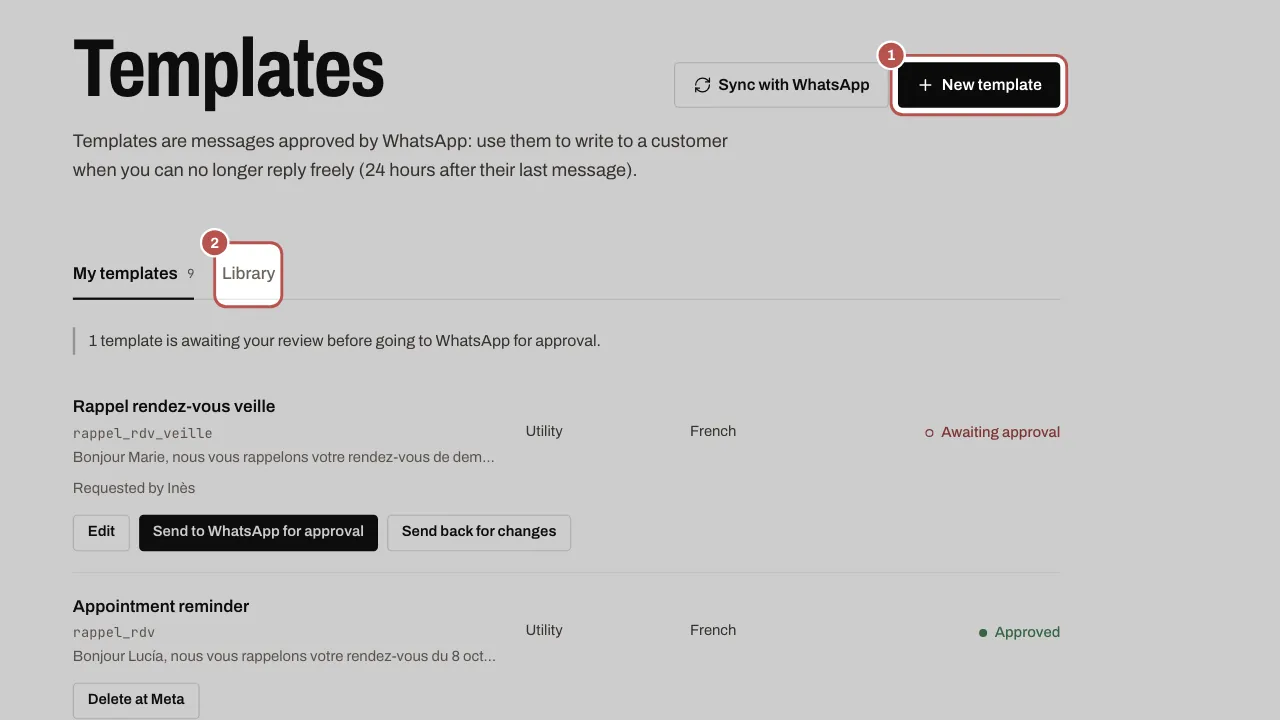
- Choose the category: Marketing for a promotion or something new, Utility for information about an order or an appointment.
- Write the text. Click Add a variable for what changes from one customer to the next (first name, date…) and give an example for each one: the preview on the right updates as you type.
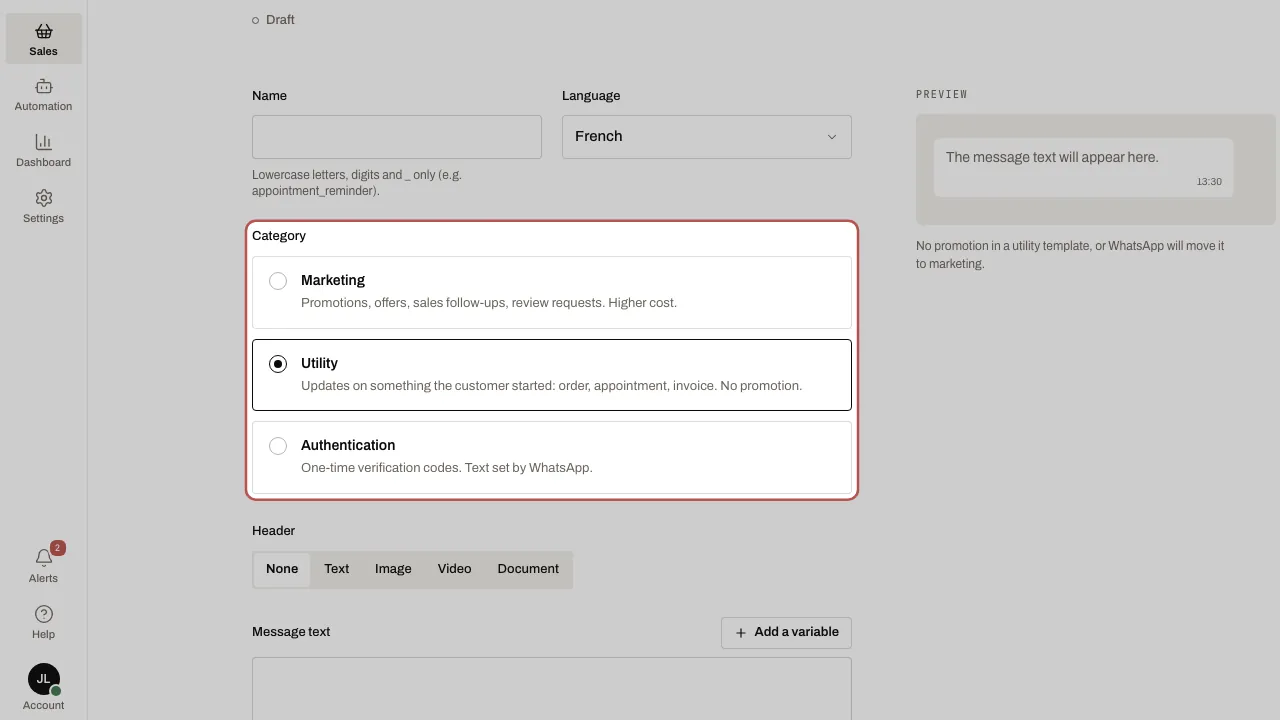
- For an image, a video or a document at the top of the message, choose the matching header and click Upload an example: WhatsApp requires it.
- Click Send to WhatsApp for approval. The template goes to In review, then Approved, usually within a few minutes (24 hours at most). A supervisor clicks Save and request approval: an administrator then sends it with Send to WhatsApp for approval.
- In your campaign, the template then appears in Choose a template.
Related articles
- Send a WhatsApp campaign A campaign sends an approved template to the contacts in a segment. Replies arrive in the inbox, like a normal conversation.
- Write to a customer after 24 hours After 24 hours without a message from the customer, WhatsApp only lets you send a template it has approved.