
Import your contacts and their permission for offers

The Contacts screen brings together all your contacts, whether they come from a conversation or a file. Their permission for offers decides who can receive a campaign.
Steps
- Open Contacts and click Import, then choose your CSV file (one row per contact, with a header row).
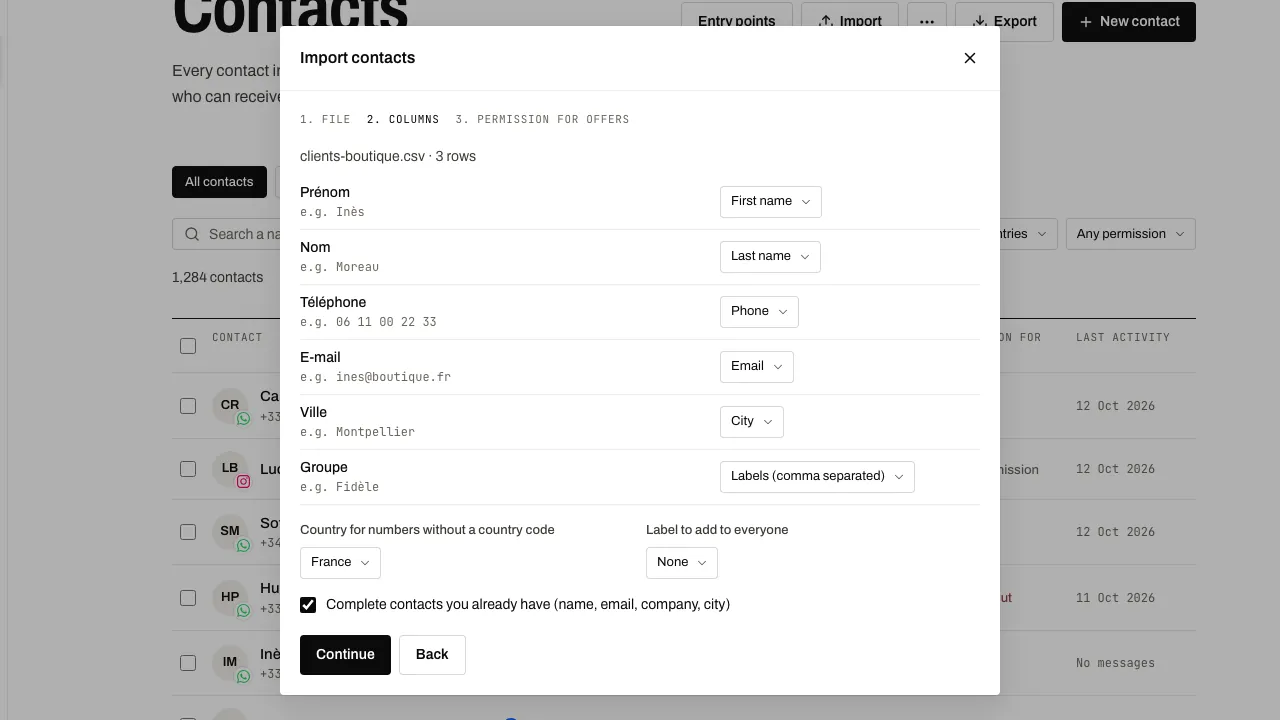
- Check the column for each header: phone, full name, first name, last name, email, company, city, tags. Give the country for numbers written without a country code. If needed, tick Complete contacts you already have (name, email, company, city) and choose a Label to add to everyone.
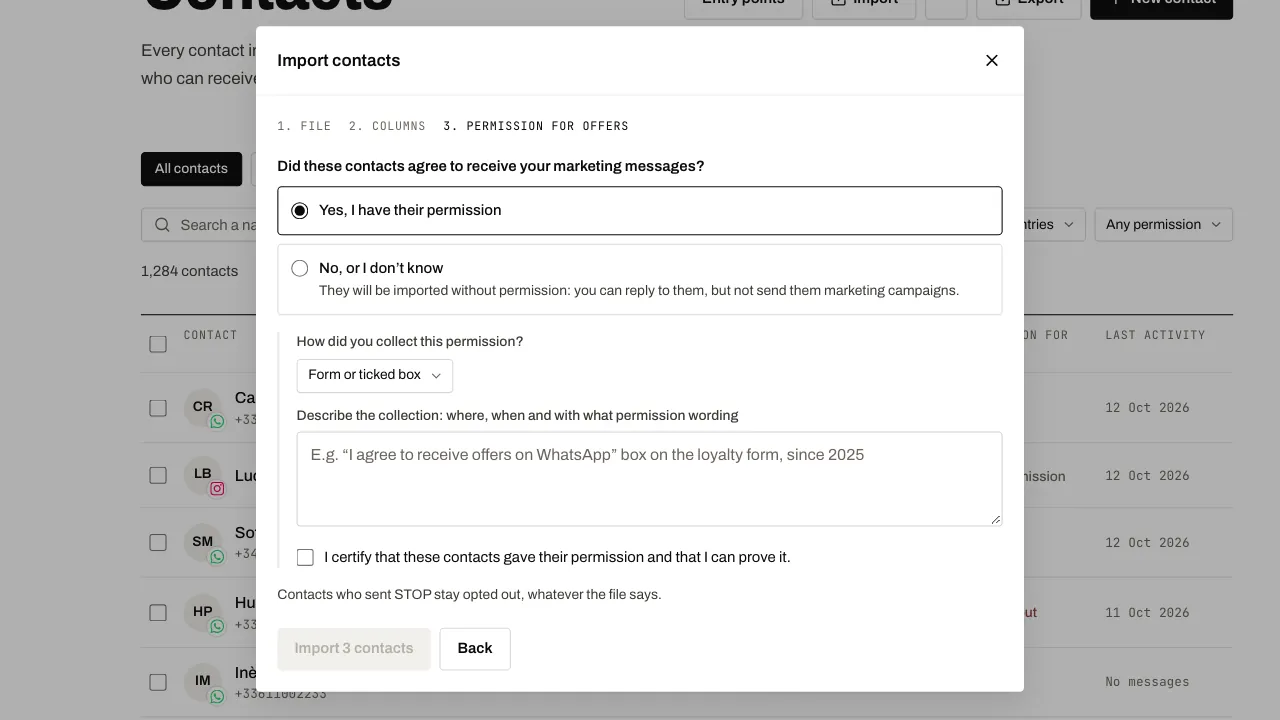
- In the Permission for offers step, say whether these contacts agreed to receive your marketing messages. If they did, say how, describe how you got their permission and tick the attestation.
- Click Import. The summary shows the contacts created, the contacts updated and the rows skipped, with the reason.
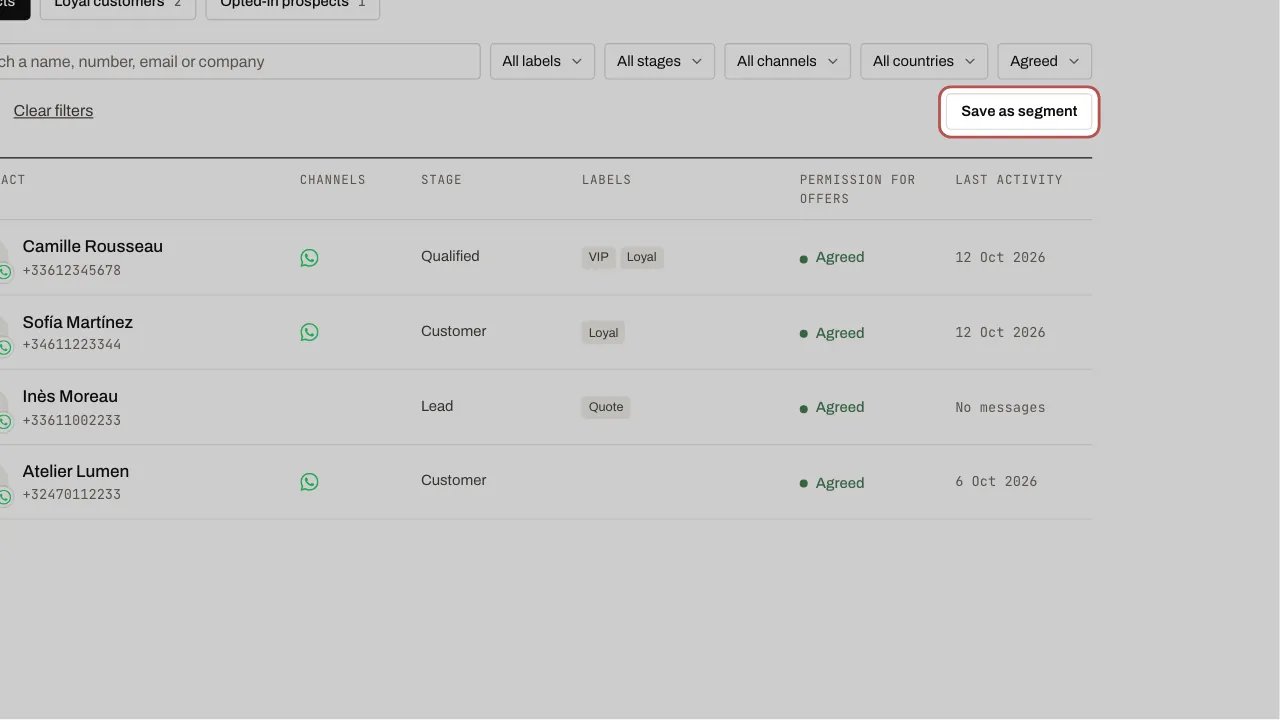
- Filter the list (tag, stage, channel, country, Permission for offers), then click Save as segment to reuse this audience.
Related articles
- Send a WhatsApp campaign A campaign sends an approved template to the contacts in a segment. Replies arrive in the inbox, like a normal conversation.
- Send an automatic message Send a WhatsApp template automatically when a contact gets a tag or reaches a stage, straight away or after a delay, and only once per contact.
- WhatsApp links and QR codes: entry points An entry point is a link or a QR code for one medium: shop window, till, flyer, business card, social media, website.
- Delete contacts You can delete one contact, a selection, or every contact in the workspace. Only the owner and admins can do it.