
Read the dashboard
The Dashboard answers two questions: how is the team doing (Overview) and what should I do now (My day).
Steps
- Open Dashboard in the menu (on a phone, in More).
- In Overview, choose the period, channel, team or member. The figures are compared with the previous period of the same length.
- The Right now · live banner updates continuously: conversations waiting for a reply, unassigned, past their response time, open, members available.
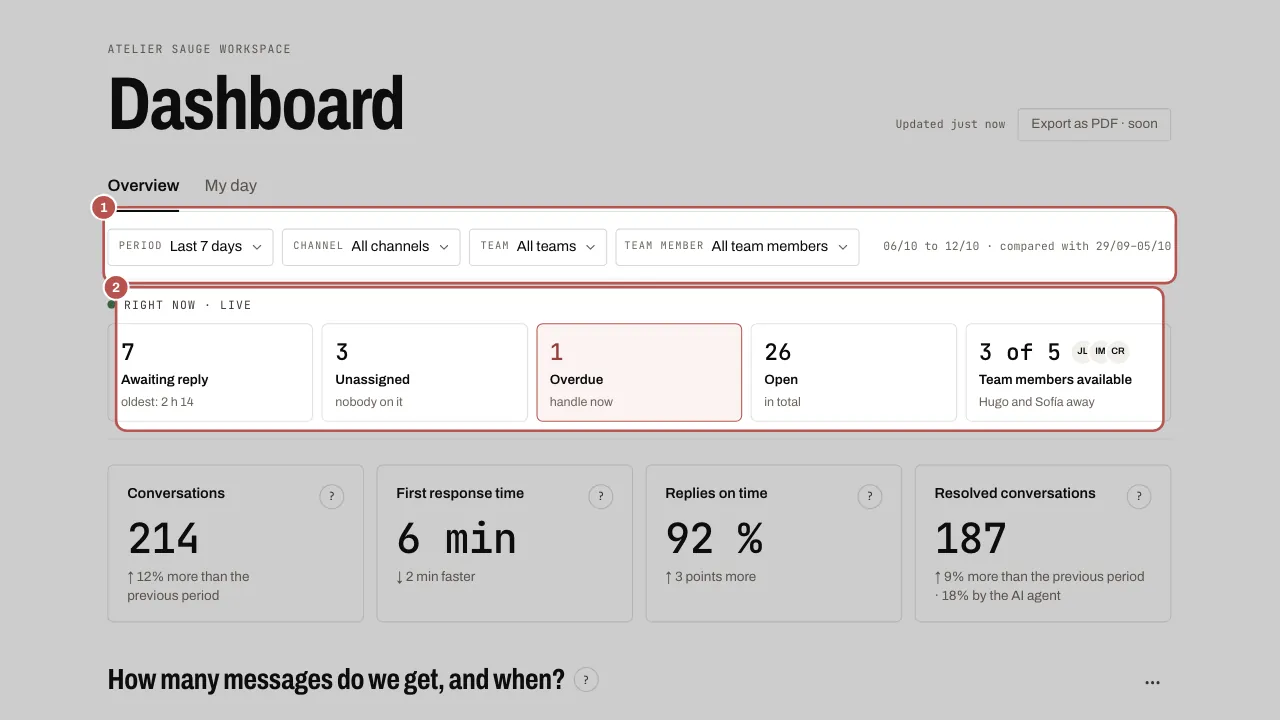
- Click a figure: the inbox opens, filtered on what it counts. Clear removes the filter.
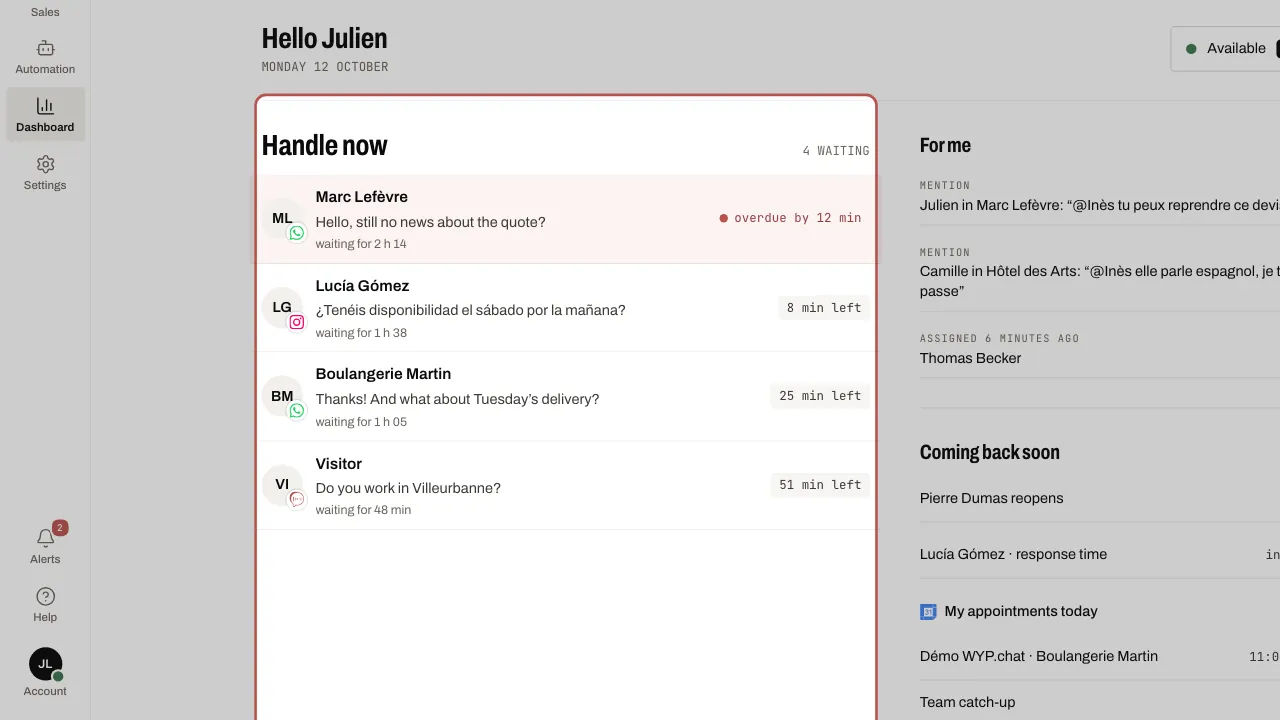
- In My day, find what is waiting for you: missed response times first, mentions, conversations coming back soon, and today’s meetings if your Google calendar is linked.
Automatic messages and response times
The first response time only counts replies from the team. An away message, a scenario message or a campaign does not count as a first response and does not end the customer’s wait; nor does it count in a team member’s messages, even when it is sent in their name.
Related articles
- Assign a conversation Assign each conversation to a person and a team: everyone knows who is replying.