
Connect Cal.com to WYP.chat
To connect Cal.com, create an API key in Cal.com and paste it in Settings › Workspace and members, Cal.com section: WYP.chat checks it and subscribes to your bookings itself. From then on, every booking, reschedule or cancellation shows as an Appointment line in the customer’s conversation.
Steps
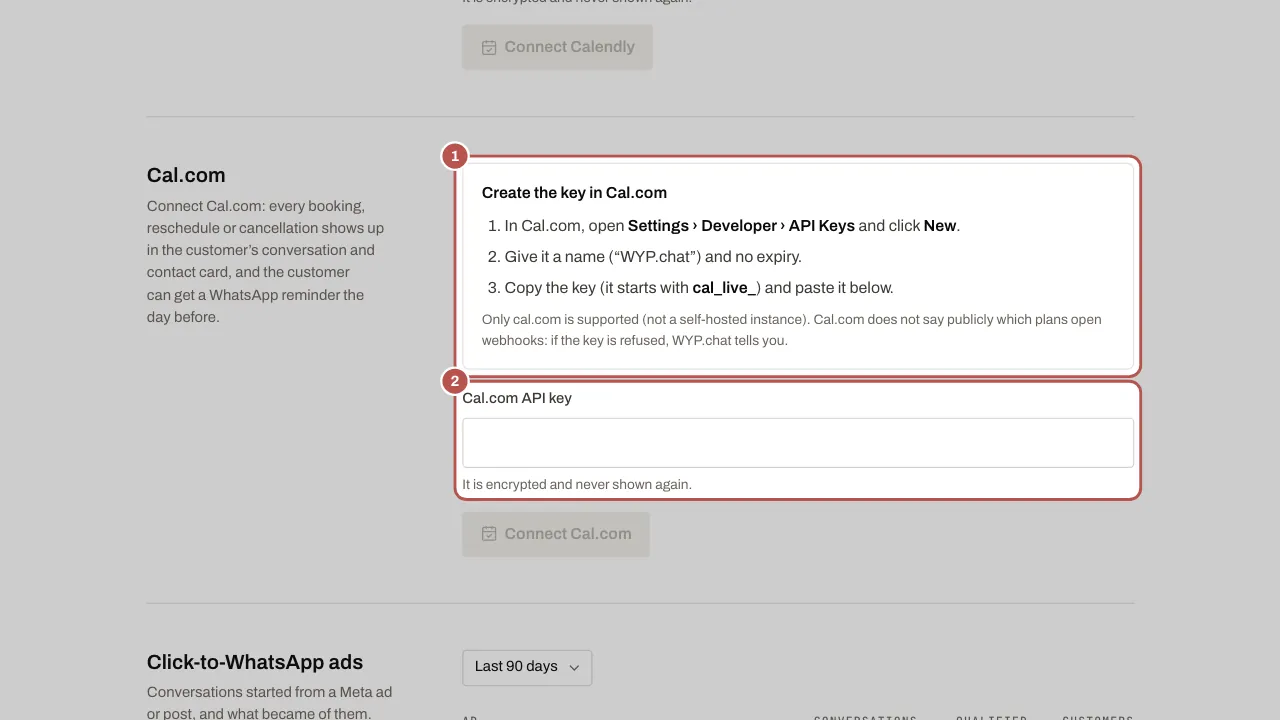
- In Cal.com, open Settings › Developer › API keys and create a key.
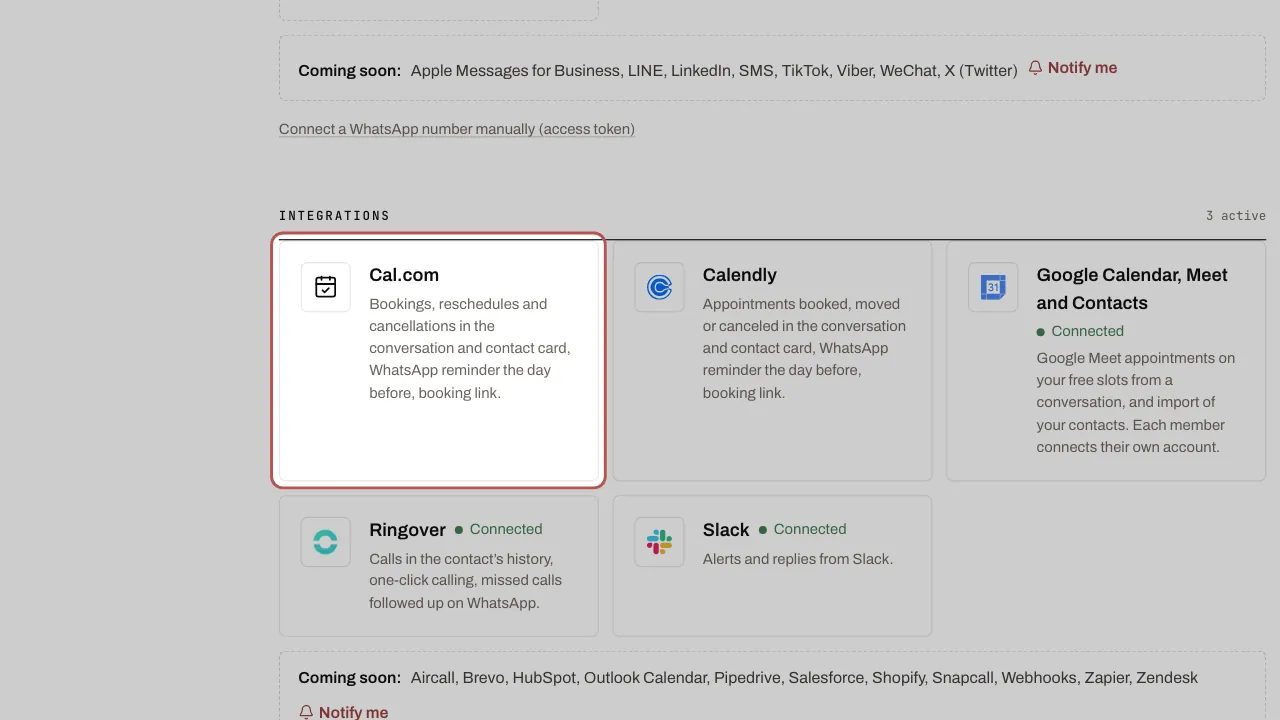
- In WYP.chat, open Settings › Channels and click the Cal.com card in the Integrations section: it leads to Settings › Workspace and members, Cal.com section. Paste the key. WYP.chat tests it without changing anything in Cal.com, then creates the booking subscription itself, on an address unique to your workspace.
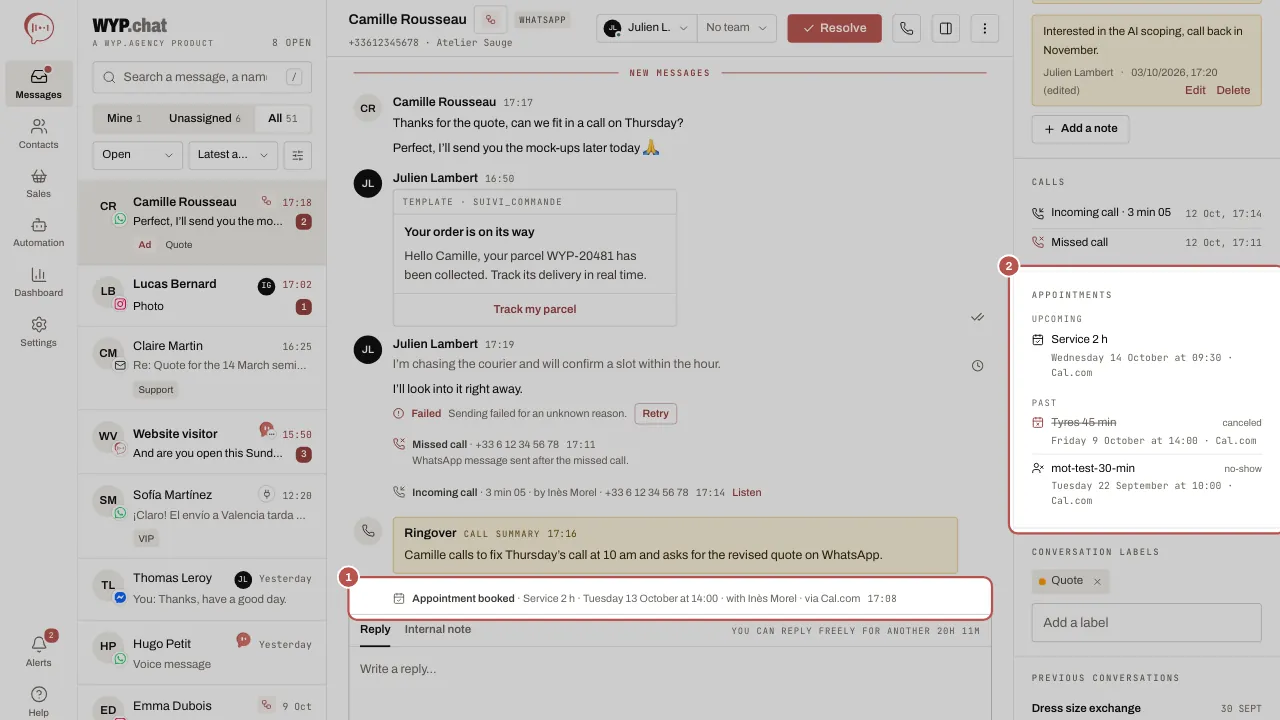
- When a customer books, reschedules or cancels, the line arrives in their conversation: appointment booked, rescheduled or cancelled. The contact record shows an appointments section (upcoming and past), with the service, the date, the host and the tool.
- To message the customer the day before, install the Appointment reminder scenario: see Appointment reminder the day before on WhatsApp. The reminder’s Change button takes the customer to their Cal.com booking page.
- Your Cal.com booking page also becomes the workspace’s booking link, if no link is set in the website chat: the Appointment link chip of scenario messages, the Appointment booking scenario and your AI agent send it to a customer who asks for an appointment. The confirmation then arrives in the thread.
Related articles
- Appointment reminder the day before on WhatsApp The Appointment reminder scenario messages the customer on WhatsApp the day before at 6 pm, with I confirm and Change, for Calendly or Cal.com bookings.
- Connect Calendly to WYP.chat Paste a Calendly token in Settings: every booking, reschedule or cancellation shows in the customer’s conversation. Needs a paid Calendly plan.
- Install the widget on your website Your website chat arrives in the same inbox as WhatsApp. All it takes is one line of code pasted into your website.