
Install the widget on your website
Your website chat arrives in the same inbox as WhatsApp. All it takes is one line of code pasted into your website.
Steps
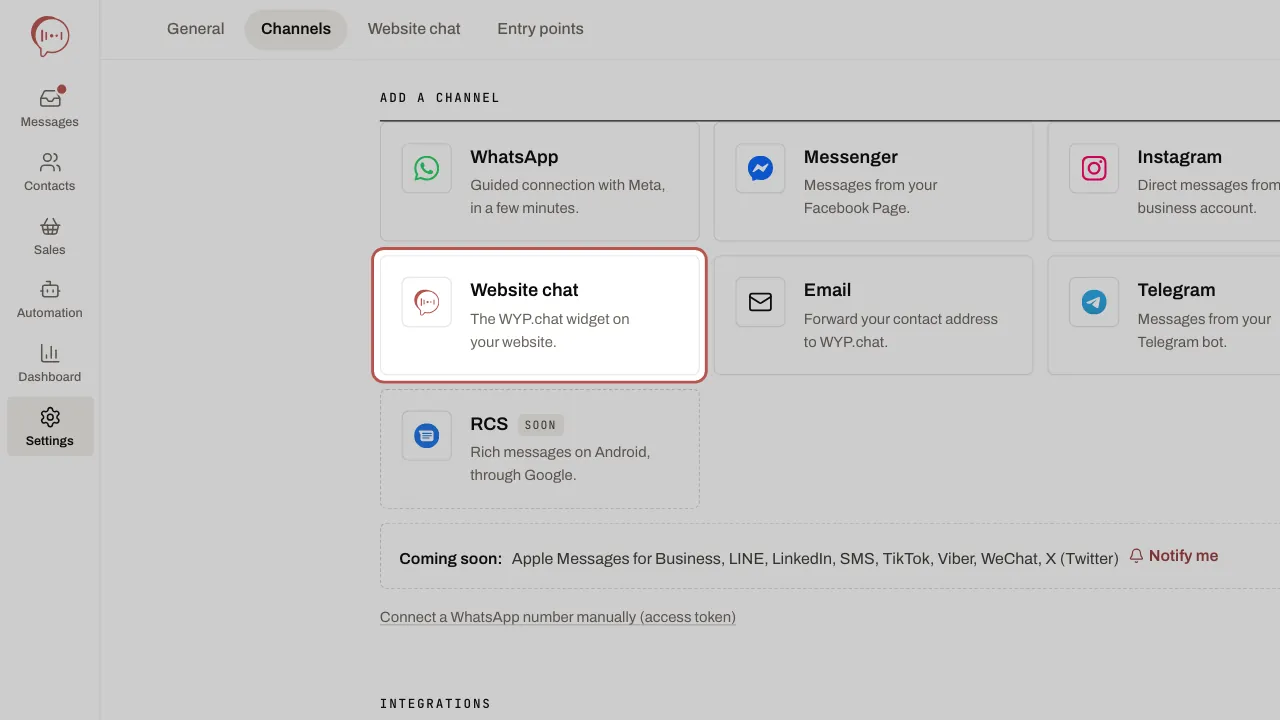
- Open Settings › Channels, click Add a channel, then the Website chat card.
- Enter a Channel name and add your website’s address in Allowed websites (one per line, with https, 10 at most). If you like, add a Welcome message (optional) and a WhatsApp link (optional), which adds a button to continue on WhatsApp. Click Create the chat.
- Copy the script shown and paste it just before the
</body>tag of your website, or add it with your tag manager. - Open Settings › Website chat (or, in Connected, open the chat’s row and click Customise the widget). Set its colours (Accent colour, Text colour), welcome message, opening hours and bookings. The preview updates live.
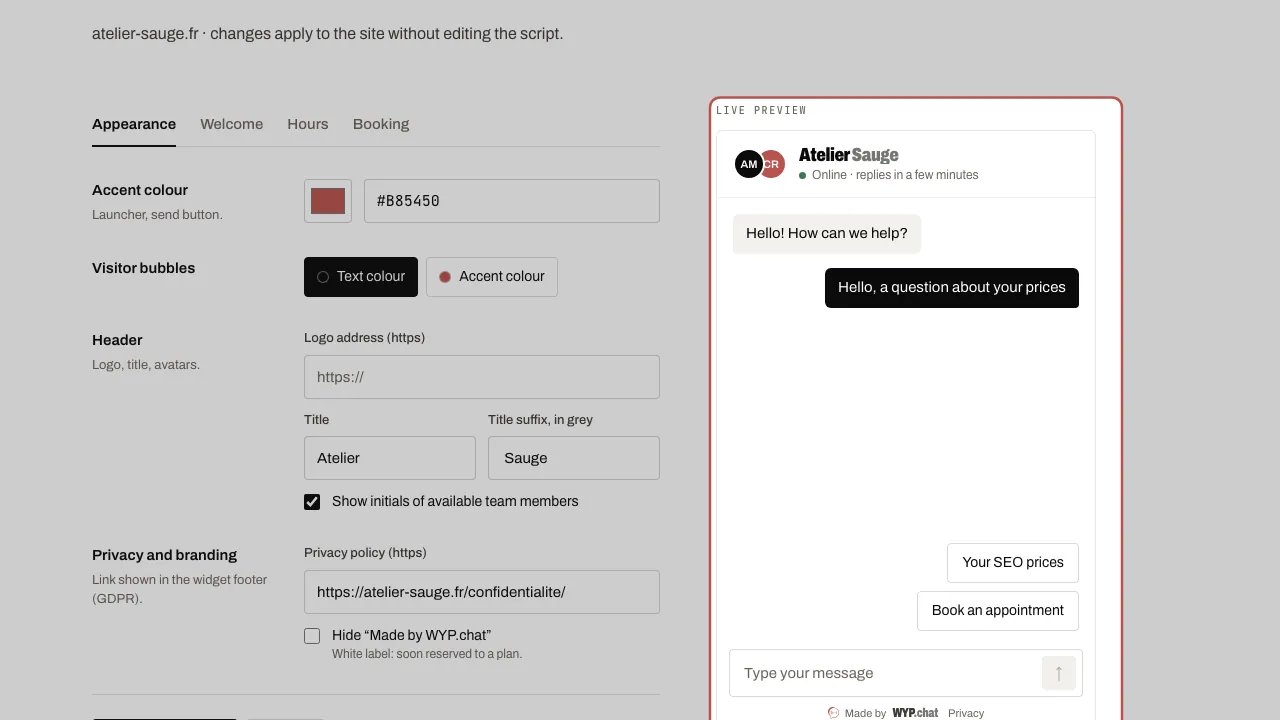
- Click Publish to the site: your changes only reach your website at that point.
Related articles
- The website chat for your visitors: live replies and new conversation In the bubble on your website, your replies appear straight away, whether they come from WYP.chat, the app, Slack, your AI agent or a scenario.
- Set up your AI agent: what it knows and where it replies Your AI agent is set up on a single page, Automation › AI agents, with four tabs: What it does, What it knows, How it replies and Where it replies.
- Several sites or brands: what your AI agent knows Create one base per website or brand: your AI agent answers only from what the right base knows, never from what another site’s base knows.
- Connect Calendly to WYP.chat Paste a Calendly token in Settings: every booking, reschedule or cancellation shows in the customer’s conversation. Needs a paid Calendly plan.