
Send a WhatsApp campaign
A campaign sends an approved template to the contacts in a segment. Replies arrive in the inbox, like a normal conversation.
Steps

- Open Sales › Campaigns and click New campaign: the draft saves itself.
- Choose the sending number and the segment (or All contacts), then a template in Choose a template.
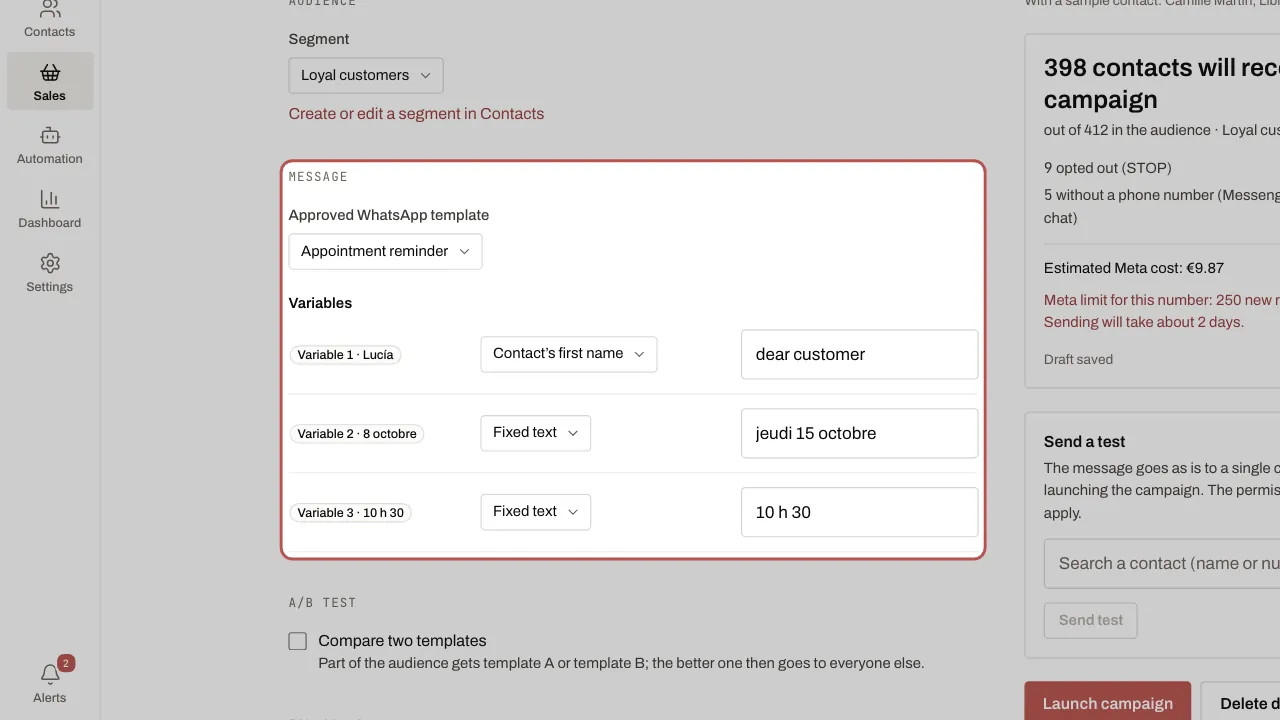
- For each variable, enter fixed text or a contact field (first name, company, city) with a text in If the field is empty.
- If the template has an image, a video or a document at the top, drop the file in: it is used for every message.
- Choose to send now or on a date. You can limit sending to certain days and hours.
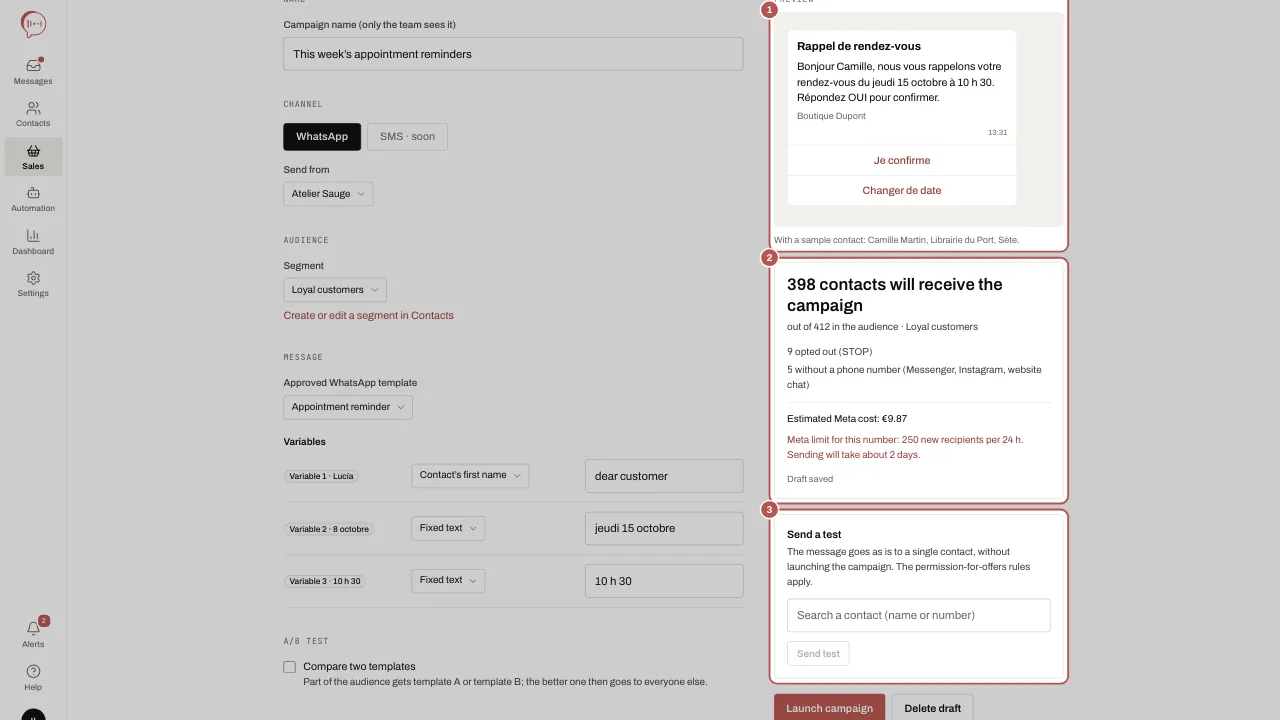
- Check the summary on the right: contacts who will receive the campaign, contacts excluded and why, estimated cost at Meta. Use Send a test to send one to any contact, for example your own record: the rules on permission for offers apply to the test too.
- Click Launch campaign (or Schedule) and confirm. A supervisor clicks Request approval: an administrator will launch the campaign.
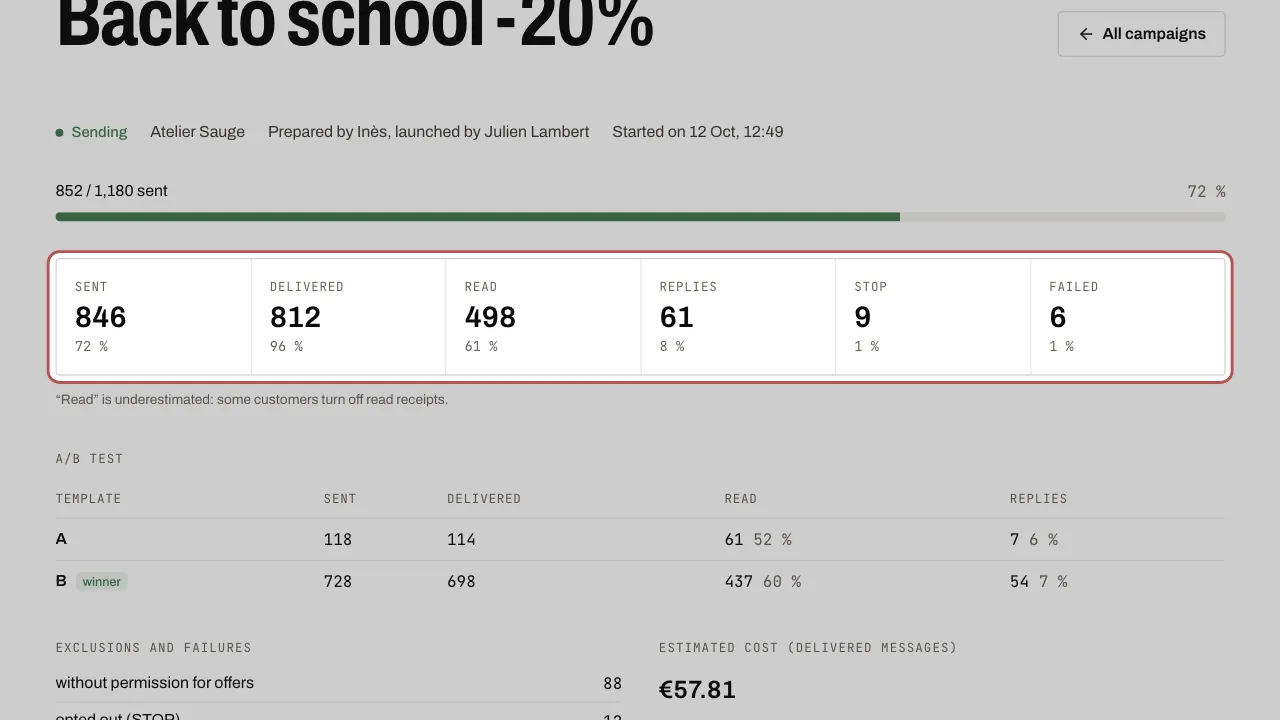
- Follow the results on the campaign page: sent, delivered, read, replies, STOP, failures. An administrator can Pause, Resume or Stop campaign: contacts not yet reached then receive nothing.
Related articles
- Prepare a template for your campaigns A WhatsApp campaign always sends an approved template. Create it in Sales › Templates, pick Marketing or Utility and send it to WhatsApp for approval.
- Import your contacts and their permission for offers The Contacts screen brings together all your contacts, whether they come from a conversation or a file.
- A/B test and automatic follow-up Two campaign options to get more replies: compare two templates before sending the better one, and follow up with people who did not react.