
Start the conversation on WhatsApp from your website chat
Your website chat can open WhatsApp instead of the chat: on a phone, a tap on the bubble opens WhatsApp with a message already written; on a computer, the bubble first shows a QR code to scan with a phone, then the Open WhatsApp on this computer button and the Already signed in to WhatsApp Web? link.
Steps
- Open Settings › Website chat, WhatsApp tab.
- Under Where the conversation starts, choose Here, in the chat, On WhatsApp or Visitor’s choice.
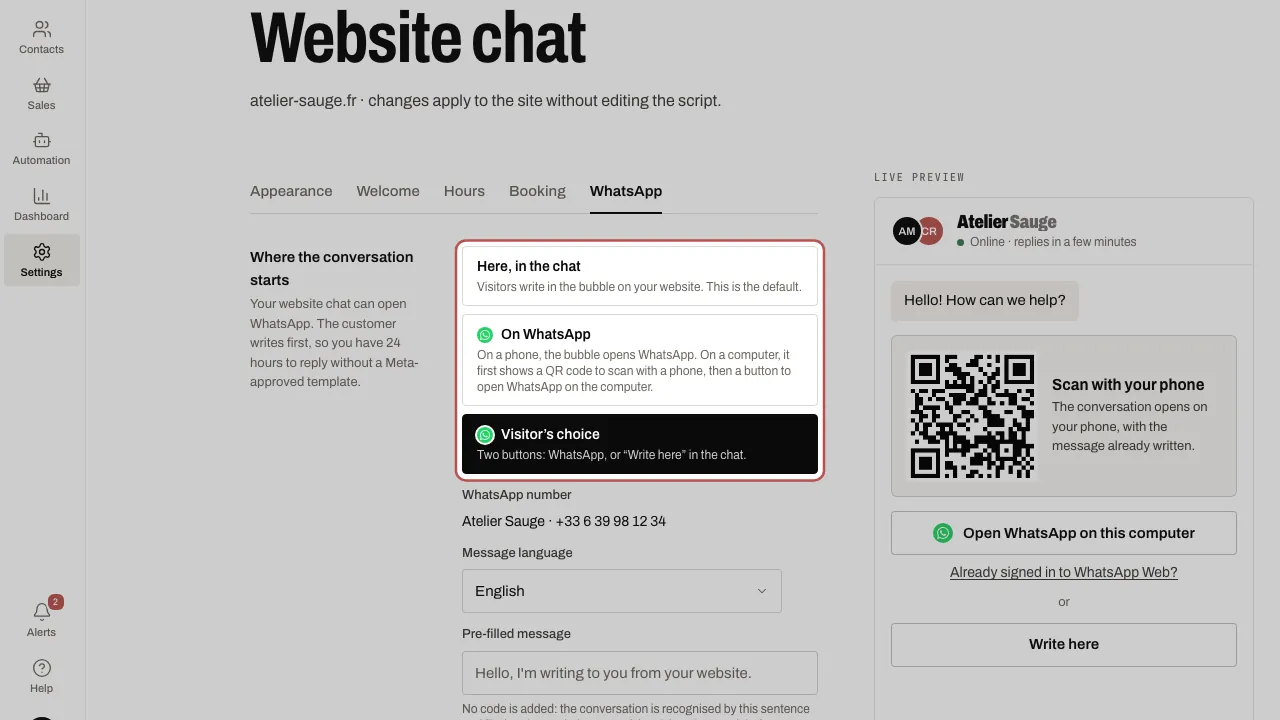
- Choose the WhatsApp number if you have several, the Message language and, if you like, the Pre-filled message: a sentence with no code, by default “Hello, I'm writing to you from your website.”. With no number connected, the screen tells you so and offers Connect a WhatsApp number.
- Click Publish to the site. Your website shows the change the next time the bubble opens, without touching the script.
What visitors see on a computer
The bubble’s panel offers the routes from the most reliable to the least, all into the same conversation, with the same pre-filled message:
- The QR code, first, under the heading Scan with your phone: the visitor scans it and the conversation opens on their phone, with the message already written. It works for everyone.
- Open WhatsApp on this computer: a new tab opens WhatsApp’s own page, which offers the computer app or WhatsApp Web.
- Already signed in to WhatsApp Web? (small link): the conversation opens straight in WhatsApp Web, in a new tab.
- The Write here button, in Visitor’s choice mode only, preceded by an “or”: the visitor stays in your website chat. It is a real button, outlined like Open WhatsApp on this computer and at the same level; the Already signed in to WhatsApp Web? link stays a small link. In On WhatsApp mode there is no Write here button.
Why this order: WhatsApp Web only goes straight to the conversation if the visitor is already signed in on that browser. Otherwise, WhatsApp shows its sign-in screen (a QR code and “Download”), and that is the most common case. On a computer, no route is direct for everyone: the QR code is the most reliable.
On a phone, nothing changes: a tap opens WhatsApp straight away.
In Visitor’s choice mode, the bubble remembers Write here for the rest of the visit, on a computer and on a phone: closed and reopened, even on another page of your website, it goes back to the chat. A visitor with a conversation under way in the chat always goes back to it, even on a later visit. To see the WhatsApp panel again when you test your own website, open it in a private window.
Which choice for which website
- Here, in the chat (default): visitors write on your website without leaving the page. The right choice if your visitors mostly use a computer or would rather not give their number.
- On WhatsApp: for customers who live on WhatsApp (shops, restaurants, tradespeople). The conversation carries on on the customer’s phone, even after they close your website.
- Visitor’s choice: two buttons, WhatsApp and Write here. The safest option if you are unsure.
What is counted
The bubble uses a tracked link, never a direct wa.me link. To do this, WYP.chat creates a Website chat entry point once (see WhatsApp links and QR codes):
- every time WhatsApp is opened from the bubble, it is counted, except for bots, with the route taken: QR code, Computer (WhatsApp), WhatsApp Web, Phone; App for older links and Direct link for links with no route (printed QR codes, older links);
- when it arrives, the conversation is filed under Website chat, with a tag if you chose one;
- the figures are in Entry points, in the details of the Website chat entry point: opens, conversations, customers, and Opens by route, one line per route for the chosen period. The routes add up to the total number of opens; opens from before 13/10/2026 have no route and are counted separately.
This entry point never asks for marketing consent: it only shows where conversations come from.
How the conversation is recognised, and its limits
The pre-filled message contains no code: the visitor only sends your sentence. WYP.chat recognises the conversation when the visitor sends that sentence, exactly, even in a conversation that is already open (capitals, spaces, punctuation and an emoji at the end don't count), and the bubble was opened in the previous 24 hours.
- Changed sentence: if the visitor changes the sentence before sending it, the conversation arrives without a source. It is handled like any other.
- Sentence too short or too common: “Hello!” or “Hi, I have a question.” are refused, because anyone types them. Keep a sentence of at least 20 characters that mentions your website.
- Several website chats on the same number: each has its own sentence. The second one gets the same sentence with the website's name by default, for example “Hello, I'm writing to you from your website bakery.example.”. Two identical sentences on one number are refused.
- Wrongly attributed: someone who types your exact sentence themselves, shortly after the bubble was opened, may be filed under Website chat without having used it.
That is why the sentence never records marketing consent. For printed QR codes, posters and flyers, the message keeps its reference (Ref. AB2CD): see WhatsApp links and QR codes.
What the conversation costs, and your AI agent
The customer writes first: you have 24 hours to reply without a Meta-approved template, and those replies are free up to 1,000 a month per number (see What you pay Meta on WhatsApp). If your AI agent replies on WhatsApp, it handles this conversation like any other WhatsApp message (see Your AI agent on WhatsApp).
Related articles
- Install the widget on your website Your website chat arrives in the same inbox as WhatsApp. All it takes is one line of code pasted into your website.
- WhatsApp links and QR codes: entry points An entry point is a link or a QR code for one medium: shop window, till, flyer, business card, social media, website.
- The website chat for your visitors: live replies and new conversation In the bubble on your website, your replies appear straight away, whether they come from WYP.chat, the app, Slack, your AI agent or a scenario.
- Your AI agent on WhatsApp, Messenger, Instagram, Telegram Your AI agent answers your customers on WhatsApp, Messenger, Instagram and Telegram once the owner has turned it on and you have chosen, channel by…