
Send from your own email address
To send your replies from your own address, for example hello@your-business.com, add a single line with your domain name provider, then click Verify in WYP.chat. Until it’s ready, your emails keep going out from the WYP.chat address: nothing stops, and your customers’ replies still come back to WYP.chat.
Steps
- Open Settings › Channels, then the row of your email channel. Under the receiving address, find Send from your own address and click Get started.
- Step 1: enter your Sending address (an address on your own domain name) and click Continue. Gmail, Outlook, Hotmail, Yahoo or iCloud addresses are not possible: their domain isn’t yours.
- Step 2, Prove that the emails really come from you: WYP.chat shows a line of type TXT with a Name and a Value. Copy them with the Copy buttons.
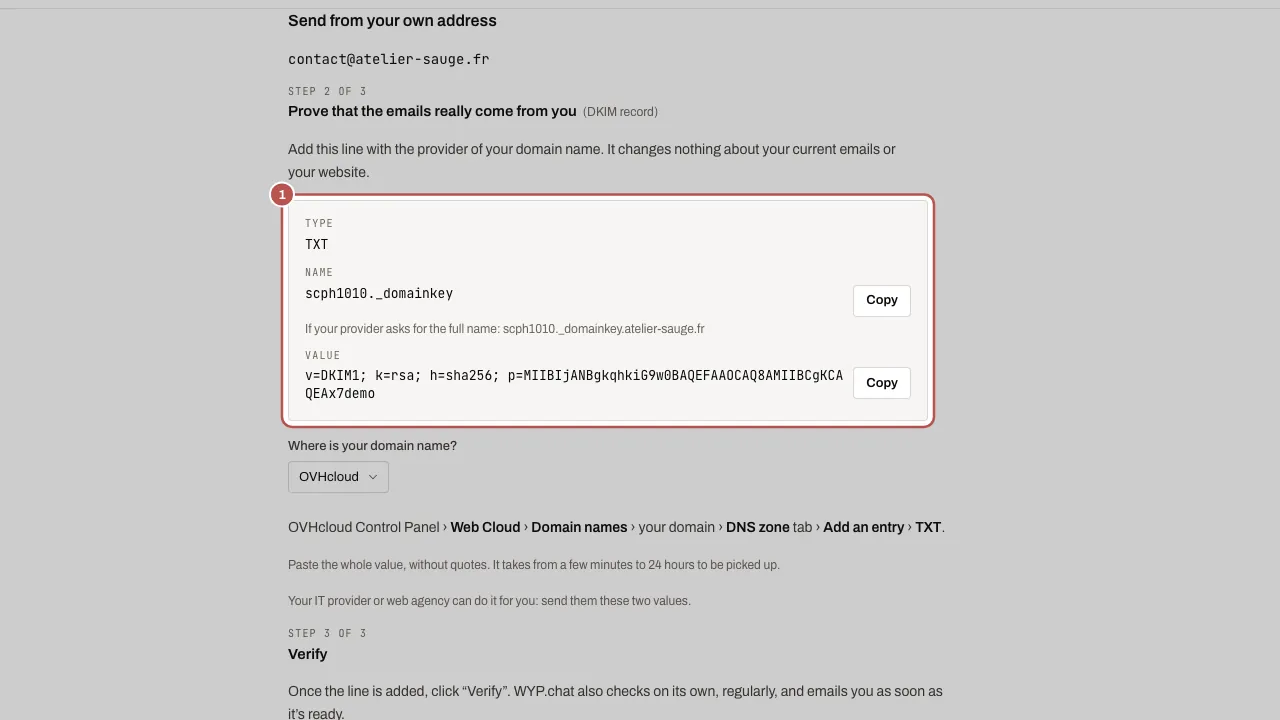
- In Where is your domain name?, choose your provider (OVHcloud, IONOS, Hostinger, GoDaddy, Cloudflare, Squarespace): WYP.chat shows where to add the line. Paste the Name as it is (most providers add your domain on their own) and the whole Value, without quotes.
- Step 3: click Verify. If the line isn’t visible yet, that’s normal for a few hours. WYP.chat also checks on its own, regularly, and emails the workspace owner as soon as it’s ready.
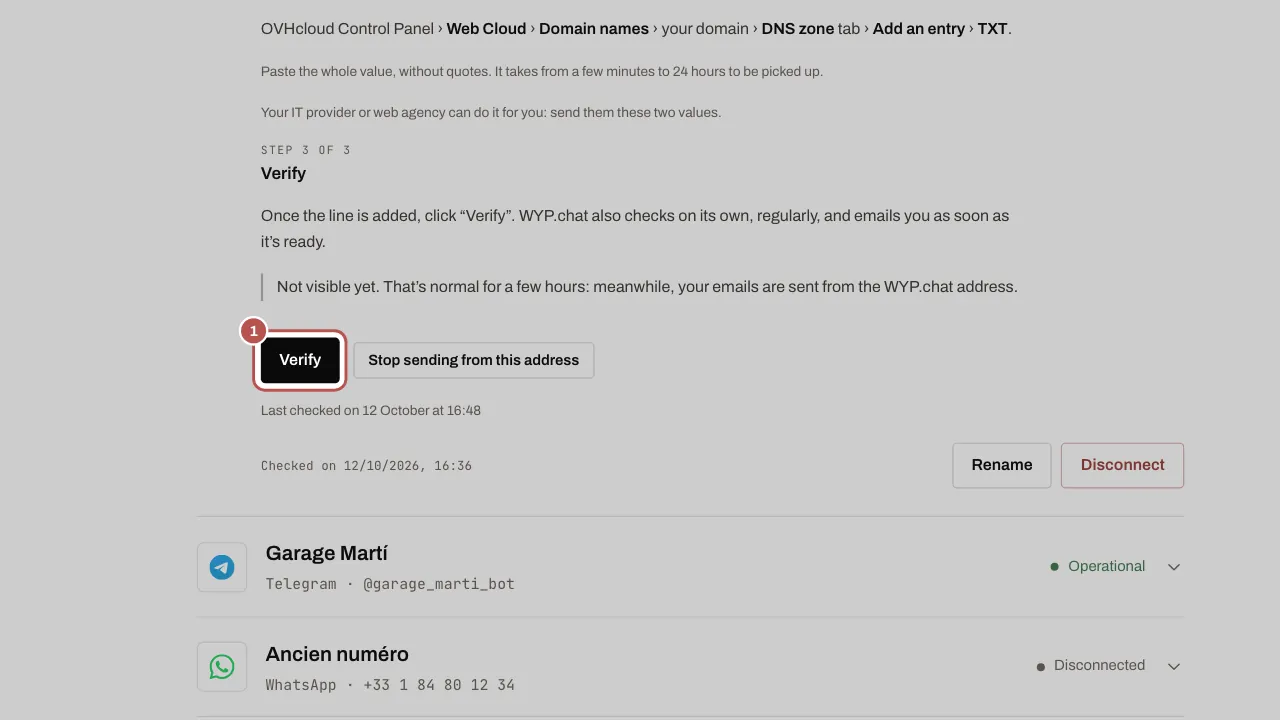
- Once it’s ready, the channel shows “It’s ready: your emails come from…”. Customers see your address as the sender; their replies still arrive in the same conversation.
Related articles
- Connect Messenger, Instagram and your email address Messages from your Facebook Page and your Instagram business account arrive in the same inbox as WhatsApp, and so do emails to your contact address…
- Group a customer who uses several channels WYP.chat groups a customer who writes on WhatsApp, Instagram and by email into one record: shared name, tags and notes, conversations kept per channel.