
WhatsApp consent form on your website
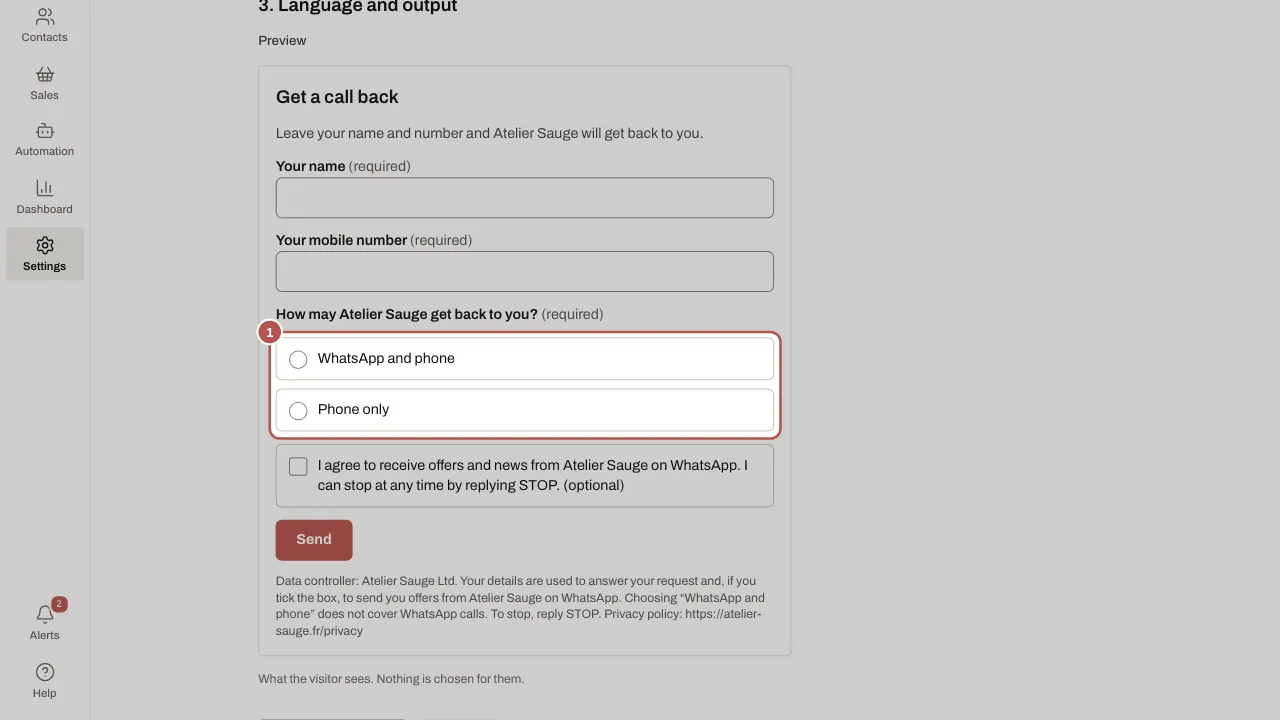
The WhatsApp consent form goes on your website: visitors leave their name and number, choose “WhatsApp and phone” or “Phone only”, and can tick a separate box for offers. WhatsApp then asks them to confirm with a button. Each consent is kept with its proof: text shown, version, time and page.
Create the form
- Open Settings › Entry points and click New entry point.
- Give it a Name (for example “Contact form”) and choose the WhatsApp number.
- Choose the Form on your website purpose and the Business name in the wording.
- Tick the Form languages, then enter the Legal name and the Link to your privacy policy: they appear in the notice under the button.
- In Websites allowed to show the form, write your website’s address, one per line (for example
https://www.your-site.co.uk). - Keep or remove Offer the “offers on WhatsApp” box, and add an optional “message” field if you wish.
- Change the title, welcome line, button and thank-you text if you like. The question, the two choices, the box and the notice cannot be changed: they are the proof of consent.
- Check the Preview for each language, then click Create entry point.
Put it on your website
- On the form’s page, Code to embed gives one frame per language: click Copy and paste it into your website’s contact page. There is no script: nothing runs on your site.
- The Hosted link and its QR code work everywhere else: an email, a poster, or a website that blocks frames.
- Click Test (not counted) to try the form without skewing the figures.
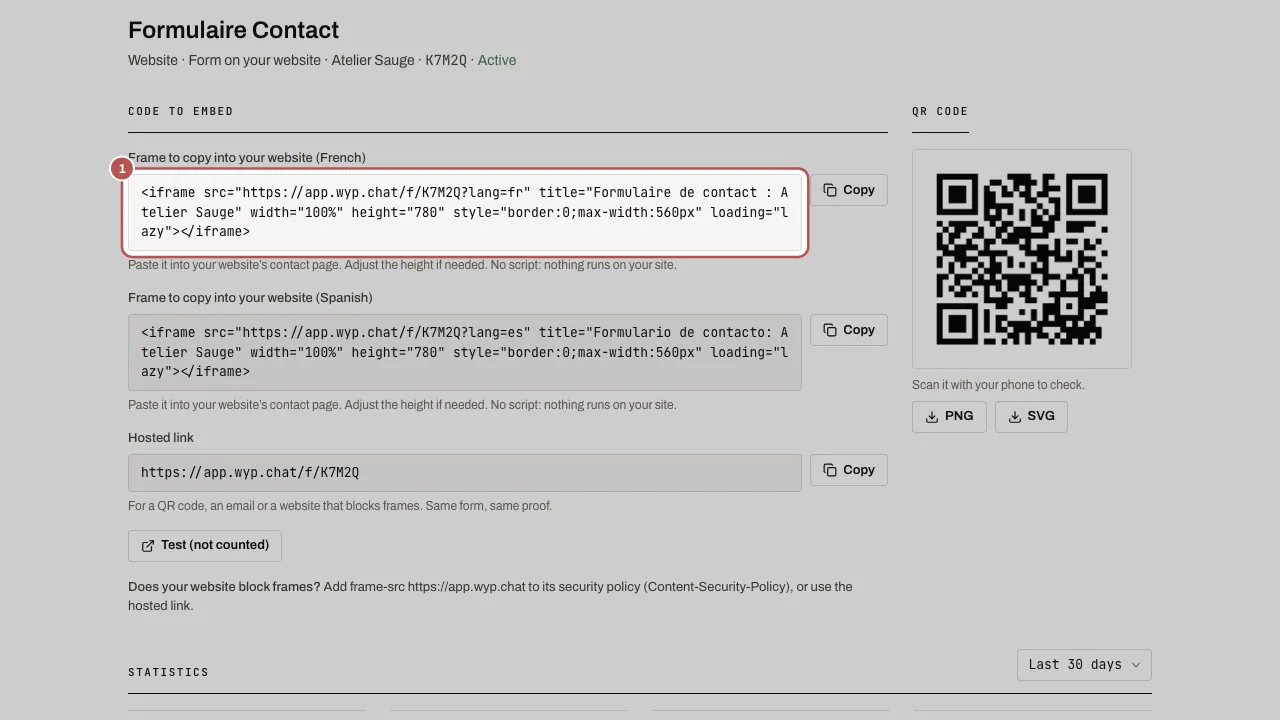
If your website sends a security policy (CSP), add frame-src https://app.wyp.agency to it. Without it the frame stays empty: use the hosted link instead.
When a visitor submits it
- The contact is created, or found if the number is already known, and the request shows up in a conversation on your WhatsApp number, with a notification. The form does not open the 24-hour window.
- WhatsApp and phone: the visitor gets a confirmation message, “Hello …, you asked … to get back to you on WhatsApp. Is this you?”, with two buttons, Yes, it’s me and It’s not me.
- Yes, it’s me: consent is confirmed. If the offers box was ticked, permission for offers is recorded at that moment, then a message thanks the customer and reminds them how to stop. With no tap within 30 days, permission for offers is dropped.
- It’s not me: WhatsApp consent is withdrawn, offers are cancelled and no further message is sent on your initiative. This refusal is kept even if you delete the contact.
- Phone only: no WhatsApp message can be sent on your initiative until the customer writes. Call them back by phone.
- A number that replied STOP, a blocked contact, the same number submitted twice within 24 hours, an invalid number or a landline with “WhatsApp and phone” are refused and counted. A form never lifts a STOP.
On the contact’s profile
The Contact back block shows the customer’s choice, its date, the form it came from and its confirmation in WhatsApp. Withdraw WhatsApp consent stops it whenever the customer asks. See the proof shows the text shown, the time it was sent and the WhatsApp IDs of the confirmation and of the reply; you can export it as JSON or text.
Track results
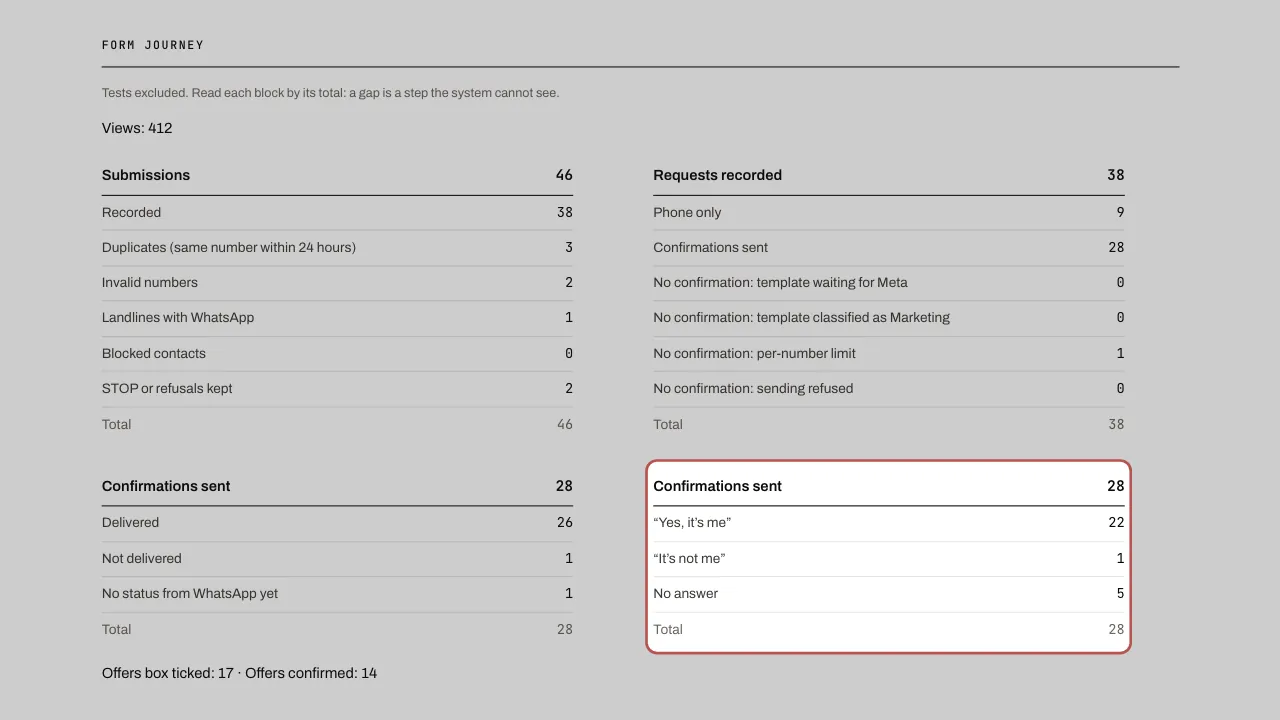
The Form journey counts every step: submissions, requests recorded, confirmations sent, delivered, “Yes, it’s me”, “It’s not me” and offers confirmed. Each block shows its total: a gap points to a step to check. Tests are not counted.
Related articles
- WhatsApp links and QR codes: entry points An entry point is a link or a QR code for one medium: shop window, till, flyer, business card, social media, website.
- Send a WhatsApp campaign A campaign sends an approved template to the contacts in a segment. Replies arrive in the inbox, like a normal conversation.
- Import your contacts and their permission for offers The Contacts screen brings together all your contacts, whether they come from a conversation or a file.