
Import your product base
Import your price list once: your products are then used for orders, proposals, product messages and the WhatsApp catalogue.
Steps
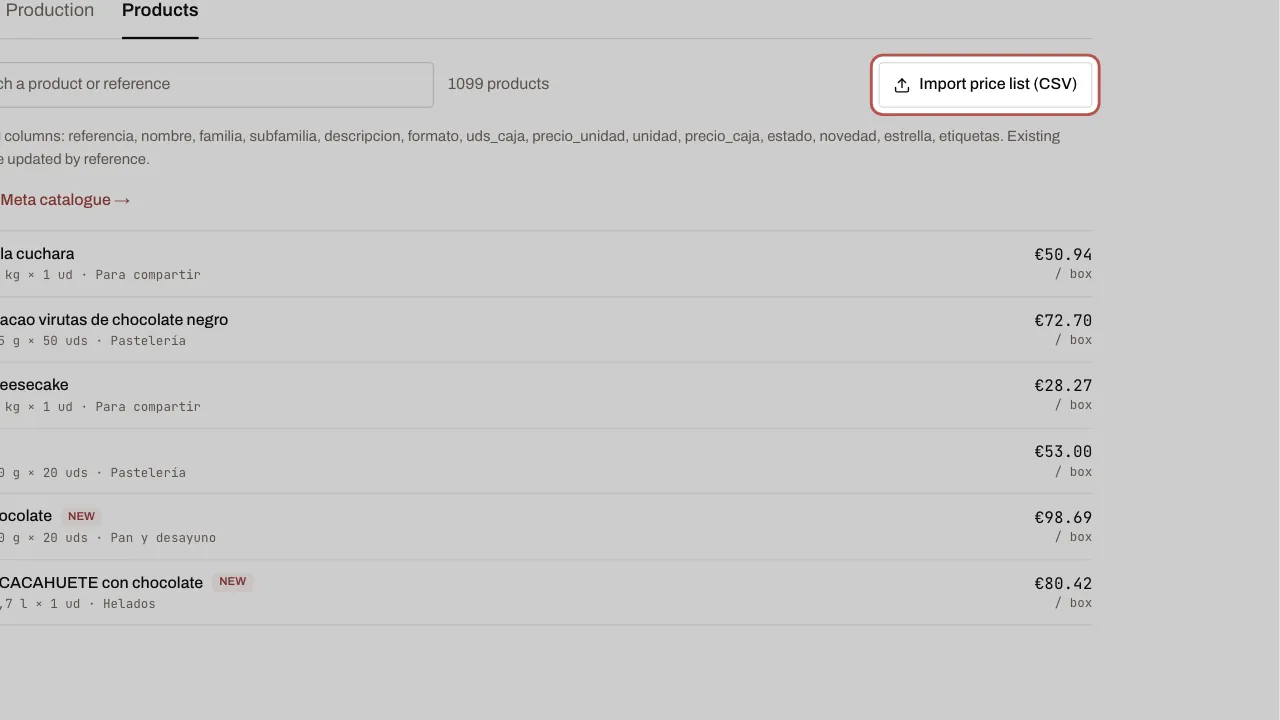
- Open Sales › Orders, Products tab.
- Click Import price list (CSV) and choose your file. The first row gives the column names, in French, Spanish or English, for example
reference,name,family,subfamily,description,format,box_qty,unit_price,unit,box_price,status,new,featured,tags. The reference and the name are required.
- Check the summary: products added and updated. A new import updates products by their reference. Nothing is deleted: a product missing from the file stays as it is.
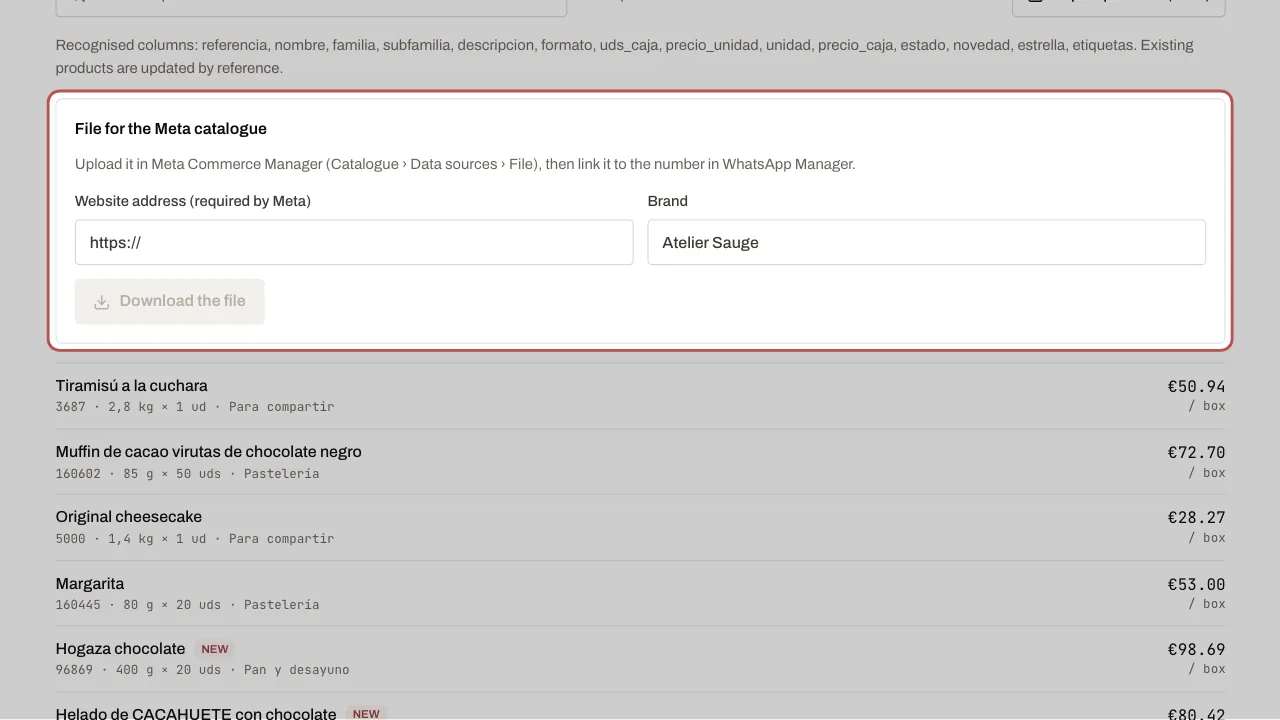
- To sell through the WhatsApp catalogue too, open File for the Meta catalogue, enter the Website address (required by Meta) and the Brand, then Download the file. The message tells you how many products have no photo.
- Upload this file to Meta Commerce Manager (Catalogue › Data sources › File), add the photos there, then link the catalogue to your number in WhatsApp Manager.
- In WYP.chat, the catalogue is linked on its own when the first cart arrives. You can also enter it in Settings › Channels, on the number’s row (Linked Meta catalog).
Related articles
- Receive and confirm an order Take orders through the WhatsApp cart, by message or by voice: WYP.chat turns each one into a record counted in boxes, with a delivery date and a summary.
- Send a proposal to accept Prepare a proposal (products, discount, delivery, validity): the customer accepts it with a button, and the order confirms itself.