
Receive and confirm an order

Your customers order through the WhatsApp cart, by message or by voice message: each order becomes a clear record, counted in boxes, with its delivery date.
Steps
- A WhatsApp cart arrives: the order is created on its own as To approve and appears as a card in the thread.
- An order written or dictated: in the conversation, click Order in the reply box, then Read the customer’s messages. Your AI agent prepares the lines from the latest messages, voice messages included. AI must be available on your workspace.
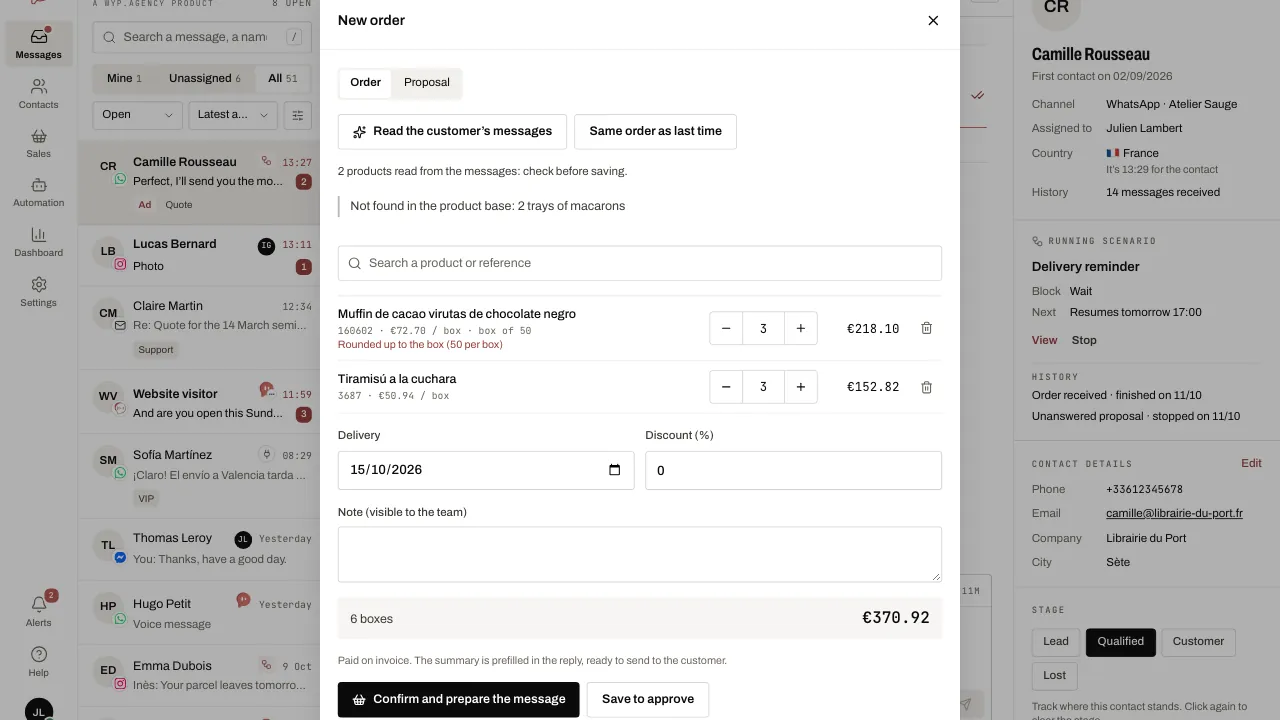
- Always read it through: a quantity in units is rounded up to the next box, and flagged; a product that cannot be found is listed separately. Adjust with the product search and the box buttons.
- Same order as last time copies the lines of the previous order in one click.
- Choose the Delivery date, a Discount (%) or a note if needed, then Confirm and prepare the message: the summary, in the customer’s language, is filled in for you in your reply. Send it.
- To get paid, open the saved order: the Payment link field uses the workspace’s Default payment link or a link of its own. Click Send the payment link: the customer receives a button to pay.
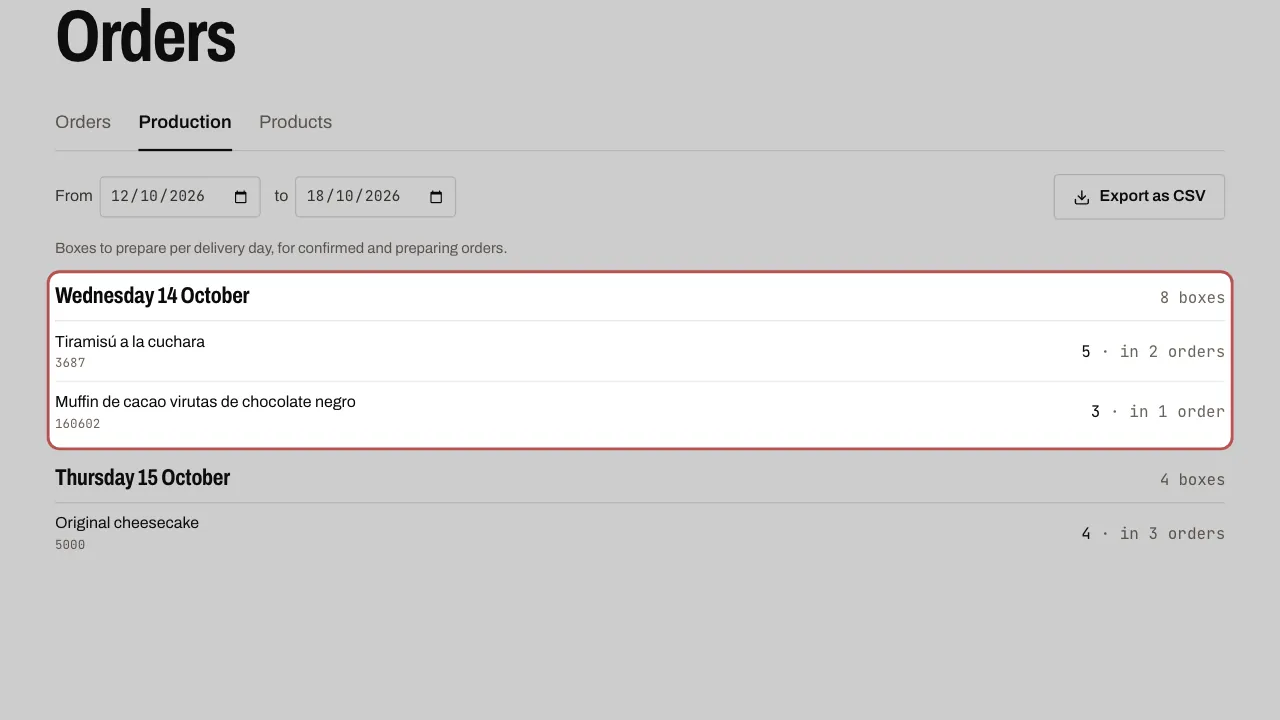
- Follow everything in Sales › Orders: the list, which you can filter by status, and Production (boxes to prepare per product and per delivery day, for confirmed and in-preparation orders, Export as CSV).
Related articles
- Import your product base Import your price list once: your products are then used for orders, proposals, product messages and the WhatsApp catalogue.
- Send a proposal to accept Prepare a proposal (products, discount, delivery, validity): the customer accepts it with a button, and the order confirms itself.
- Send an interactive message (buttons, list, carousel, products) An interactive message lets the customer reply with a single tap: a button, a list row, a carousel card.