
Set up your AI agent: what it knows and where it replies
Your AI agent is set up on a single page, Automation › AI agents, with four tabs: What it does, What it knows, How it replies and Where it replies. It answers your customers from your content, on your website chat and, if you turn it on, on WhatsApp, Messenger, Instagram and Telegram. When it is not sure, it hands over to the team.
Steps
- Open Automation › AI agents. Another way: Settings › Workspace and members, AI agents section, Set up your AI agent button.
- At the top, Your AI agent shows your agent’s status card (see Coucou, Allô and Veilleur: your AI agents). In Its look, click Coucou or Allô: the choice is saved straight away.
- What it does tab: read the month’s figures (replies this month and replies included, conversations handed over to the team, website pages read), What is missing, then Latest replies and Latest handovers to the team. As long as it knows no frequently asked question, click Add 5 questions: the FAQ opens so you can write five in a row (“Question 1 of 5”…).
- What it knows tab: tick what it can read, in the order of the page. First Frequently asked questions (the FAQ, its safest answers), then Your website (Website pages; Re-read the site reads your pages again straight away), then PDF documents, then Other sources (Team quick replies and Product catalogue). It only answers from this content.
- At the bottom of What it knows, in Try a question, ask a question as a customer would. You see the answer, its source, its confidence, and whether it would answer alone or hand over to the team. Nothing is sent.
- How it replies tab: in Hand over to your team, tick the cases where it hands over (The visitor asks to talk to someone, Negative tone or complaint, Quote or exact price request, Existing customer about their account). The last checkbox, greyed out and always ticked, covers sensitive data (card, IBAN, ID number, password): the model never reads it, your AI agent does not reply and hands over to the team. Set the Minimum confidence (70% by default): below it, it replies “I am passing your question to the team” instead of improvising. Write a Greeting if you like. The AI notice is shown as the customer reads it and cannot be changed. Finally, choose the Voice replies (see Let your AI agent reply with a voice message) and the Business.
- Where it replies tab: for each channel, make one choice, It replies on its own, It suggests, you approve or Never. Website chat starts on It replies on its own. With It replies on its own, tick Only when you are closed so that it lets the team reply during your opening hours; the Set your opening hours (included in every plan) link takes you there. It suggests, you approve works at any time. For WhatsApp, Messenger, Instagram and Telegram, see Your AI agent on WhatsApp, Messenger, Instagram, Telegram.
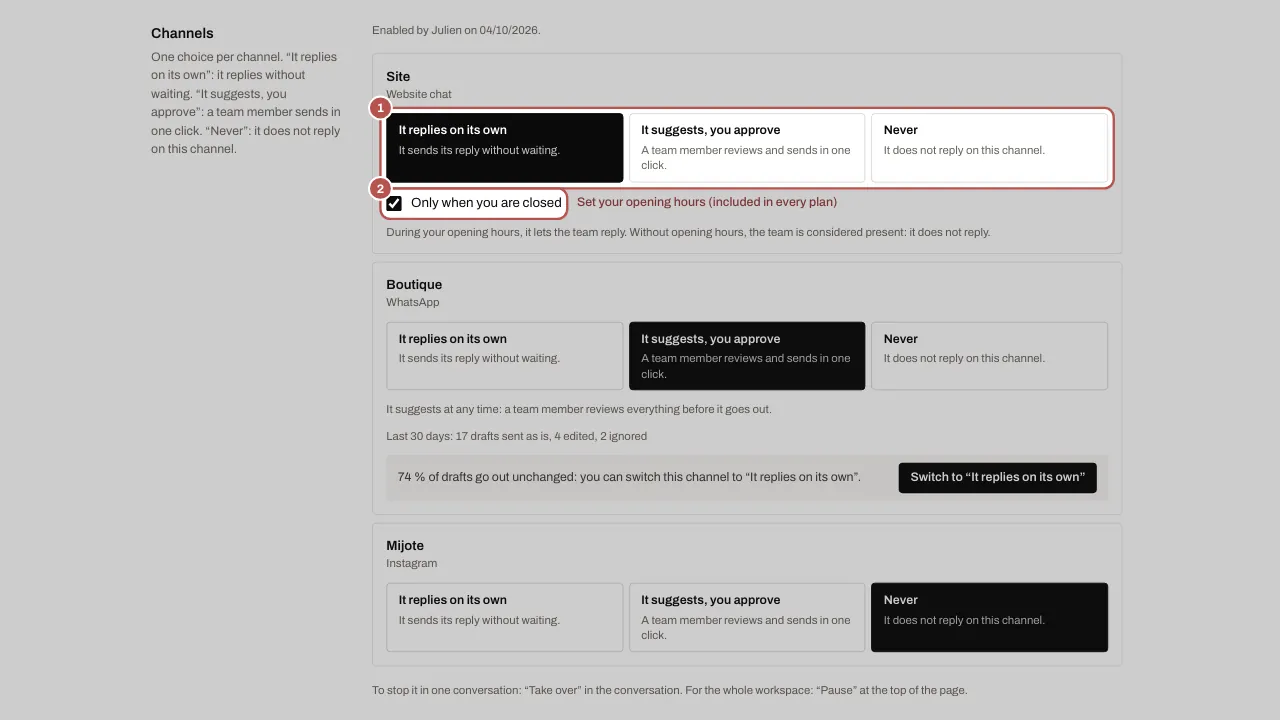
- Click Save, in the Unsaved changes bar at the bottom of the page. Cancel clears the changes in progress.
Appointments: the link straight away
If you have a booking link (set in the website chat widget, Booking tab, or your connected Calendly or Cal.com page), your AI agent always knows it. As soon as a customer asks for an appointment, a slot or a calendar link, even misspelt, it gives it straight away, in full (https://…), with the Book a slot button, without asking questions first. It never says it has no link.
Pause or stop your AI agent
- For the whole workspace: click Pause on the Your AI agent card. Your team replies on its own, and the banner “Your AI agent is paused for the whole workspace: your team replies on its own.” stays until you click Resume.
- In one conversation: click Take over in the conversation (see See who is replying to the customer).
- On a channel: choose Never in Where it replies.
Advanced settings
At the bottom of the page, the folded Advanced settings section holds what is rarely needed: Wait until the customer has finished typing (see Your AI agent on WhatsApp, Messenger, Instagram, Telegram), Limits and caps (see Your AI agent’s limits and safeguards) and Several websites or brands (see Several sites or brands: what your AI agent knows).
Related articles
- Your AI agent on WhatsApp, Messenger, Instagram, Telegram Your AI agent answers your customers on WhatsApp, Messenger, Instagram and Telegram once the owner has turned it on and you have chosen, channel by…
- Coucou, Allô and Veilleur: your AI agents Coucou and Allô are the two looks of your AI agent, and Veilleur replies when you are closed. Set them up in three steps: set up, try, activate.
- Several sites or brands: what your AI agent knows Create one base per website or brand: your AI agent answers only from what the right base knows, never from what another site’s base knows.