
Invite your team
Add your colleagues to the workspace and give each one a role. Users are unlimited on every plan.
Steps
- Open Settings, Workspace and members tab, Members section.
- Enter the person’s email, choose their role, then click Invite.
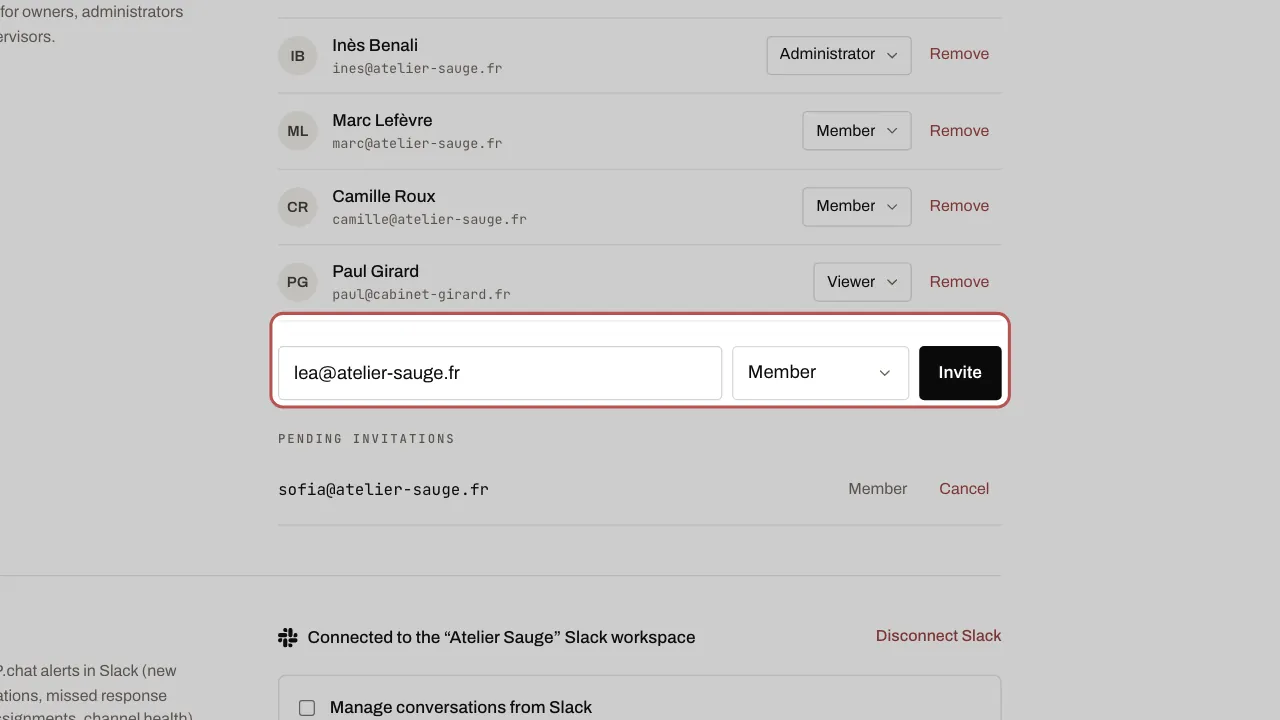
- The roles: Member replies to their teams’ conversations; Supervisor oversees their teams and prepares campaigns and scenarios; Viewer sees everything without writing; Administrator sets up the whole workspace, except the subscription, which is reserved for the Owner.
- The person receives a link valid for 3 days. Their invitation stays visible under Pending invitations until they accept it; Cancel removes it.
- Then put everyone in a team: see Organise the team.
Below the first steps, the Invite a colleague tip leads straight to this list: see Getting started.
Related articles
- Organise the team: teams, response times, quick replies, tags Teams share out the conversations, response times prevent anything being forgotten, and quick replies and tags save everyone time.
- Turn on two-factor authentication Two-factor authentication protects your account: as well as your password, a six-digit code is requested when you sign in.
- Assign a conversation Assign each conversation to a person and a team: everyone knows who is replying.
- Getting started: your business and the first steps Right after you create your workspace and turn on two-factor authentication, WYP.chat asks about your business and prepares the workspace for you.