
Getting started: your business and the first steps
Right after you create your workspace and turn on two-factor authentication, WYP.chat asks about your business and prepares the workspace for you. Nothing is installed until you agree, and the installation can be undone for 30 days. This screen is reserved for the owner and the admins.
Choose your business
- On the What is your business? screen, click the tile for your line of work, or Other business. The 15 businesses on offer are: Restaurants, Real estate, Building trades, Car garages, Car dealerships, Local shops, Bookshops, Wholesalers and distributors, Hair and beauty, Health (practices, clinics), Professional services, Hotels and tourism, Driving schools, Gyms and Customer service (any business).
- The Here is what we are preparing for you screen lists, in plain words: your AI agent (Coucou or Allô), teams and tags, opening hours, the away message (written by Veilleur for restaurants, building trades, shops, car dealerships and bookshops, with the reopening time), quick replies, WhatsApp-approved messages and scenarios.
- Click Install everything. To leave something out, first click Customise, untick it, then click Install the selection.
- No time right now? Later takes you to the inbox. The screen stays in Settings, Workspace and members tab, Your business section.
Car dealerships prepares quick replies for the test drive, the trade-in of the customer’s current car (photos, mileage, registration), finance (never quoting a rate) and the availability of a model, plus WhatsApp-approved messages for the test drive, the follow-up after it and the preparation of the handover. Bookshops prepares quick replies for ordering a book that is not on the shelf, “your book has arrived”, holding a book, author talks and signings, the book club and gift cards, with the matching WhatsApp-approved messages. WYP.chat is not connected to a dealership’s management software or to a bookshop’s stock: you confirm availability yourself.
What waits for a channel
Opening hours are saved as soon as a channel is connected, and WhatsApp-approved messages are prepared as drafts as soon as WhatsApp is connected. Once the channel is connected, come back to your business screen and click Install everything again: only what is missing is added, nothing is created twice.
Undo the installation
For 30 days, your business screen shows Installed on … with the Undo the installation button. Whatever your team has already changed or uses is kept: for example a quick reply that was edited, or a team that already has a member or a conversation.
The first steps
Below the conversation list, First steps has 5 steps, ticked automatically from what happens in your workspace. Each step opens the right screen.
- Connect WhatsApp, or, in the meantime, your website chat.
- Add your AI agent: the Automation › AI agents page. The step is ticked once your AI agent is set up to reply.
- Try it as a customer: ask your AI agent a question in Try a question, in the What it knows tab of the AI agents page.
- Turn on a first scenario.
- Receive your first customer message: Share opens the entry points (WhatsApp links and QR codes).
Working with others? Below the steps, the Invite a colleague tip leads to the member list: see Invite your team.
Finding your way around
The menu has six sections, the same on a computer and on a phone: Messages, Contacts, Sales, Automation, Dashboard and Settings.
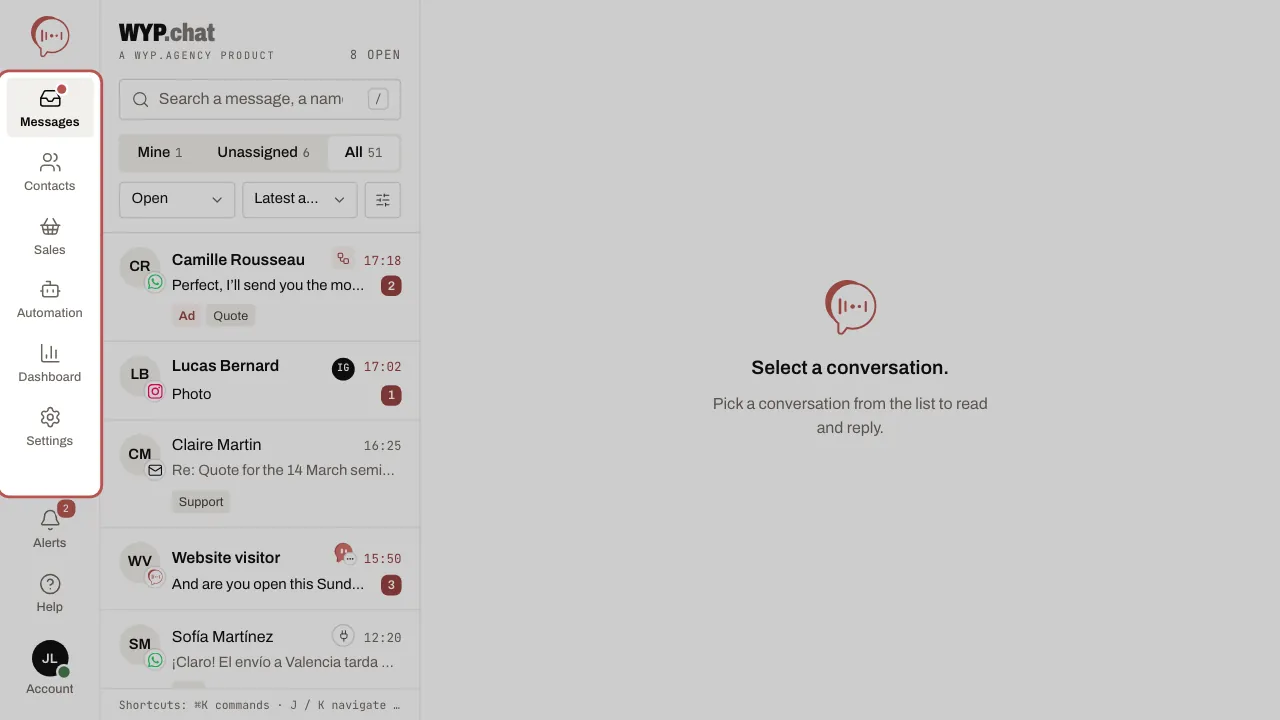
- On a computer, the menu is on the left, with the name under each icon. Hover over an icon, or reach it with the Tab key: a tooltip says in one sentence what you will find there. The Esc key closes it. At the bottom of the menu: Alerts (your notifications), Help and Account.
- On a phone, the bar at the bottom shows Messages, Contacts, Sales and Automation. More opens the other sections (Dashboard, Settings) and the help.
- A section with several screens shows them as tabs at the top. For example, Sales has Orders, Campaigns and Templates; Automation has AI agents and Scenarios; Settings has General, Channels, Website chat and Entry points.
Replay the guided tour
The first time you sign in, a guided tour of a few minutes presents the inbox, each section of the menu and the help. To replay it on a computer, click Help at the bottom of the menu (or press the ? key), then Replay the guided tour. The owner and administrators also find it at the bottom of the First steps block in the conversation list: on a phone, unfold that block to reach it. On a phone, the tour points to the bottom bar and More.
A free 20-minute video call
During your 14-day trial, the Book a 20-minute video call with us link appears in the welcome window and below the first steps. We set up WhatsApp and your AI agent with you.
Related articles
- Invite your team Add your colleagues to the workspace and give each one a role. Users are unlimited on every plan.
- Connect your WhatsApp Business number Until Meta approves WYP.chat, our team sets up this connection with you. The steps below describe it.
- Coucou, Allô and Veilleur: your AI agents Coucou and Allô are the two looks of your AI agent, and Veilleur replies when you are closed. Set them up in three steps: set up, try, activate.
- Install the widget on your website Your website chat arrives in the same inbox as WhatsApp. All it takes is one line of code pasted into your website.