
Organise the team: teams, response times, quick replies, tags
Teams share out the conversations, response times prevent anything being forgotten, and quick replies and tags save everyone time. Everything is set up in Settings › Team.
Steps
- Open Settings, Team tab. In Teams, enter a name in New team (for example “Sales”), then click Add.
- Under the team, open Team members · Team numbers. Tick its members, and Lead for the person who receives escalations. Tick the team’s numbers and channels, then Save.
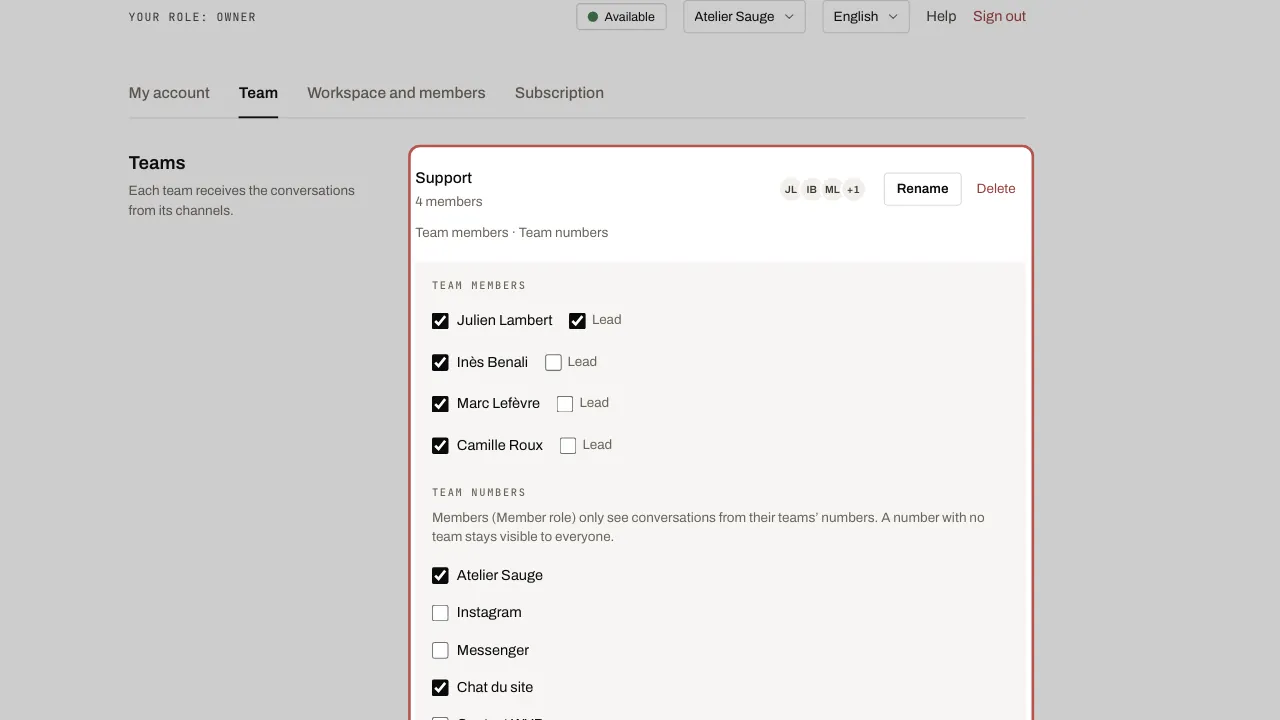
- Someone with the Member role sees conversations from their teams’ numbers, those assigned to one of their teams and those assigned to them. A number with no team stays visible to everyone.
- In Opening hours and response times, choose what the rule Applies to (a team or a number). Tick Opening hours and set the hours for each day. Under Response times (SLA), enter the First response (minutes) and the Resolution (minutes), counted during those hours, then Save. On the Free and Solo plans, set the hours of a number: response times are marked “Team plan”.
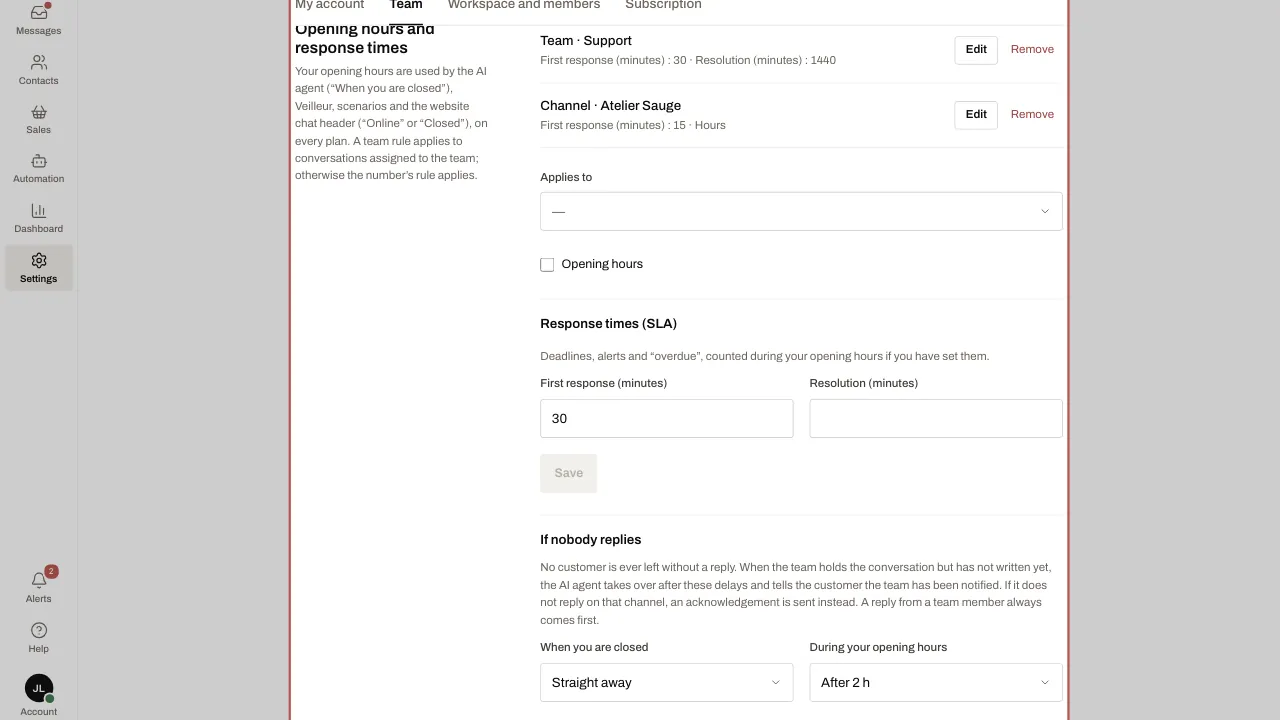
- When the deadline gets close, the assigned person is alerted. Once it has passed, the conversation becomes Overdue and the team’s leads and supervisors are alerted too; if there are none, the administrators.
- Just below, If nobody replies sets when the AI agent takes over a conversation the team holds but nobody has replied to yet: When you are closed (Straight away by default) and During your opening hours (After 2 h by default). Your choice is saved straight away, on every plan. Without an AI agent on the channel, an acknowledgement is sent instead. See Your AI agent on WhatsApp, Messenger, Instagram, Telegram, If nobody on the team replies section.
- In Quick replies, click New reply. Give it a Shortcut, choose who it is Shared with (Only me, A team or The whole workspace), write the Text, then Add. In a conversation, type / to insert it.
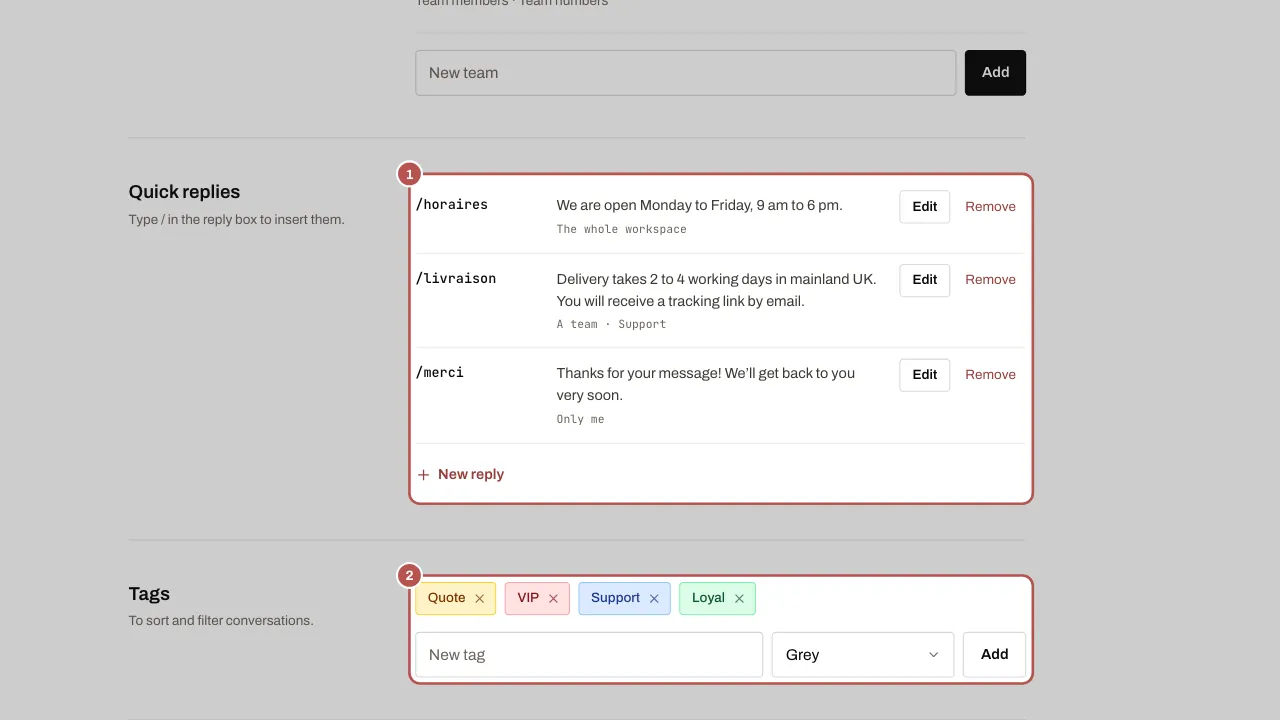
- In Tags, enter a New tag, choose its Colour, then Add. Tags are used to sort and filter conversations.
Related articles
- Invite your team Add your colleagues to the workspace and give each one a role. Users are unlimited on every plan.
- Assign a conversation Assign each conversation to a person and a team: everyone knows who is replying.
- Get alerts in Slack WYP.chat sends its alerts to Slack: new conversation, response time almost exceeded, assignment, channel health.
- Your AI agent on WhatsApp, Messenger, Instagram, Telegram Your AI agent answers your customers on WhatsApp, Messenger, Instagram and Telegram once the owner has turned it on and you have chosen, channel by…