
Get alerts in Slack
WYP.chat sends its alerts to Slack: new conversation, response time almost exceeded, assignment, channel health. Each alert contains a link that opens the conversation in WYP.chat, handy if your team lives in Slack.
Steps
- Open Settings › Channels, scroll down to the Integrations section and click the Slack card (integrations are listed alphabetically: Google Calendar, Meet and Contacts, then Slack; those not available yet are on the Coming soon: line, with Notify me). You land in Settings › Workspace and members, in the Slack section.
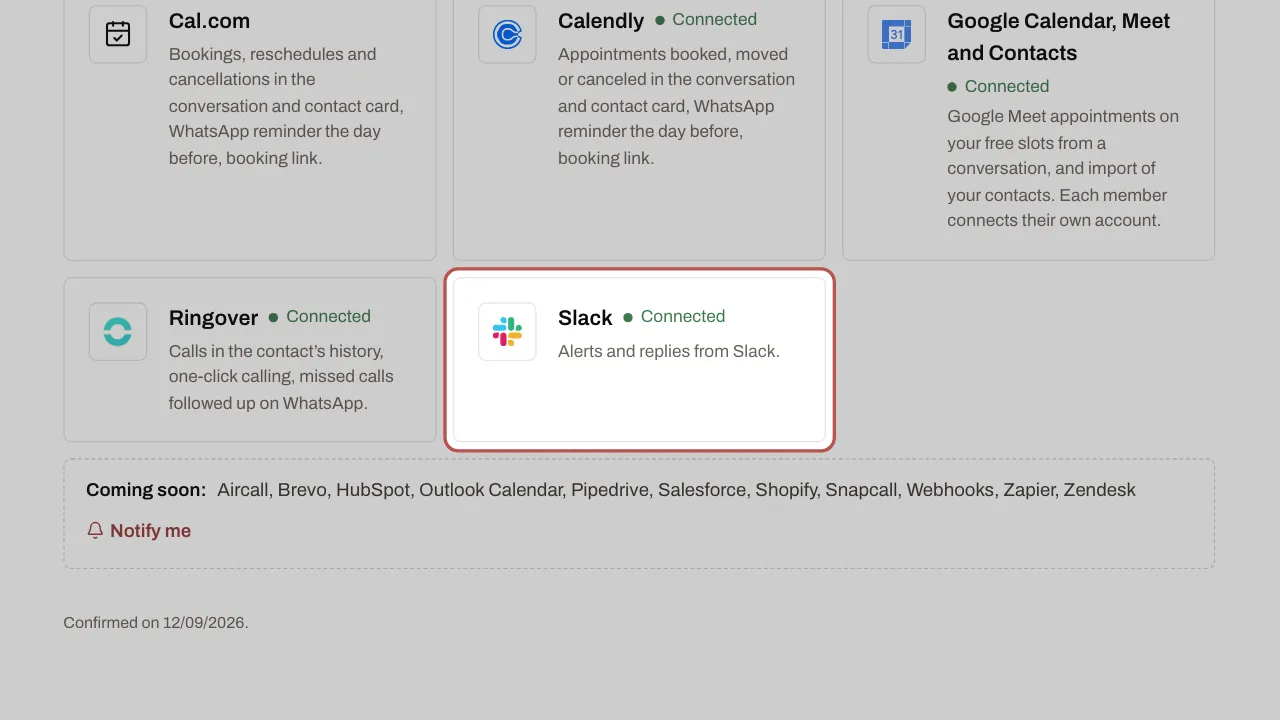
- Click Connect Slack, choose your Slack workspace and authorise the WYP.chat app. Back in WYP.chat, the section shows the connected Slack workspace.
- Choose the Default channel: it receives every alert, except those of a team that has its own channel.
- In Channel per team, give each team a channel if needed: a conversation’s alerts go to its team’s channel.
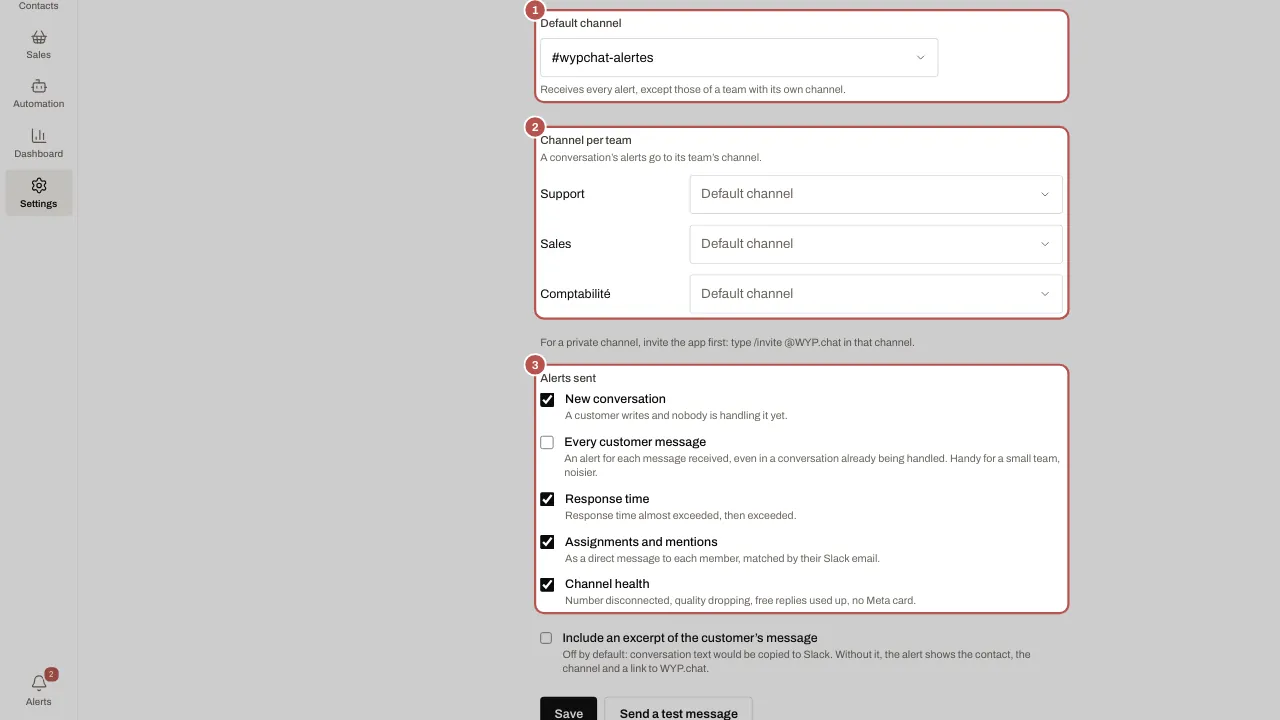
- Tick the Alerts sent: New conversation, Every customer message, Response time, Assignments and mentions (as a direct message to each member, matched by their email in Slack), Channel health. Every customer message is unticked by default.
- Click Save, then Send a test message to check.
Related articles
- Reply from Slack Reply to customers from Slack: each conversation gets a thread where you read, reply, take or resolve it, on WhatsApp, Instagram, Messenger or email.
- Organise the team: teams, response times, quick replies, tags Teams share out the conversations, response times prevent anything being forgotten, and quick replies and tags save everyone time.
- Install WYP.chat on your phone and get notifications Install WYP.chat on iPhone or Android without an app store, then turn on notifications to be alerted to every new message, even when your phone is locked.