
Rewrite a text with AI
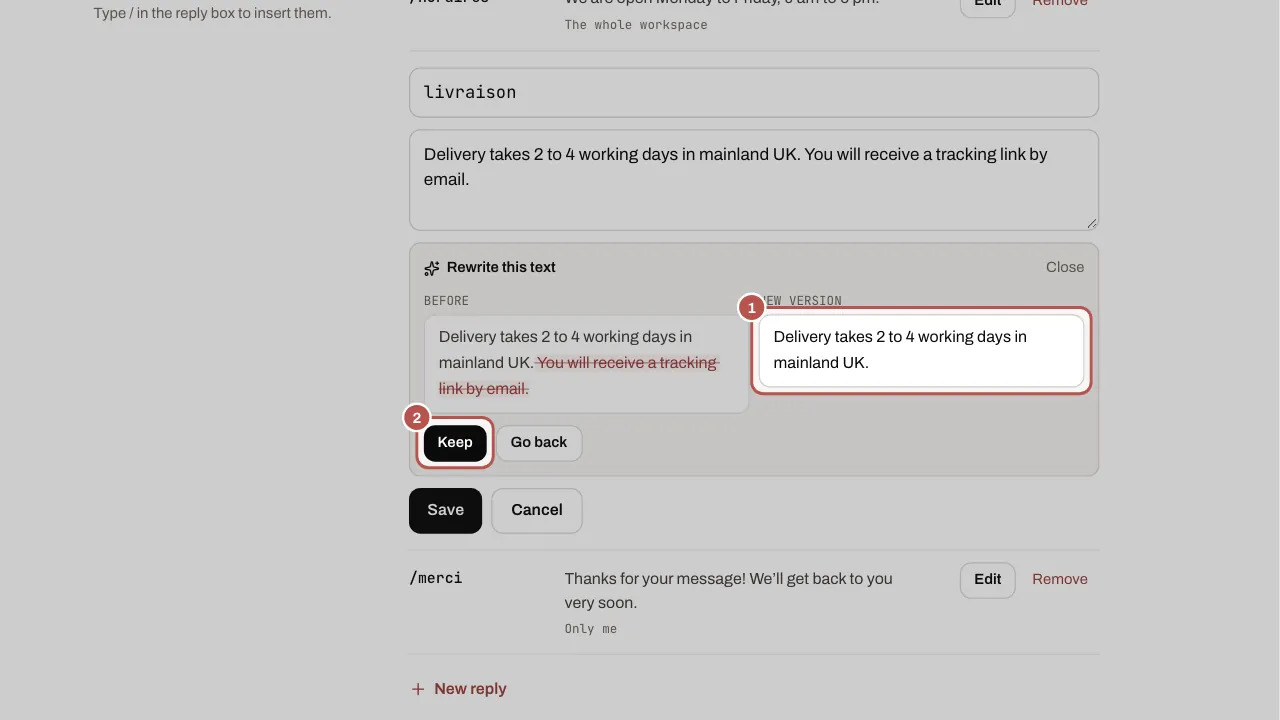
The Rewrite button suggests a new version of a text you write for your customers, following your instruction: “shorter”, “more formal”, “warmer”. You see the before and the new version side by side, then you keep it or go back. Your text only changes once you click Keep, then saves as usual.
Where to find it
Under the text, in four editors:
- Quick replies (Settings › Team), when you create or edit one.
- Templates: the body of a draft, rejected or in-review template. A template already approved by Meta cannot be changed: create a new one.
- Scenarios: the text of a “Send a message” step.
- Your AI agent’s FAQ (AI agents › What it knows), and the answer to an unanswered question before you add it.
Rewrite in three steps
- Click Rewrite under the text.
- Type your instruction and press Enter, or pick a suggestion: Shorter, Warmer, Fix spelling. You can also ask for another language.
- Removed words are struck through in Before, added words are highlighted in New version. Click Keep to put it in the field, or Go back to try another instruction.
After Keep, the Go back to the previous version link restores your text while the editor stays open.
What the new version never changes
A new version that breaks these rules is not shown: the screen says why.
- Variables in braces (
{{1}},{{prenom}},{{lien_rdv}}) stay the same, as many times. - No figure, price, lead time or opening time added. To add one, write it in the instruction (“add: from €40”).
- No link added, except the one in your instruction or your booking link (“add the booking link”).
- The length the field allows: 1,024 characters for a template, 2,000 for an FAQ answer.
In an FAQ answer, conditions stay written (“except Mondays”, “by appointment”). A removed figure is not refused: it shows struck through, so read it before you keep it.
Limit
Each workspace has 300 rewrites over a rolling 30 days, on every plan, Free included, with no credits. The screen shows how many are left when fewer than 30 remain.
Who can rewrite: whoever can save that text.
Related articles
- Organise the team: teams, response times, quick replies, tags Teams share out the conversations, response times prevent anything being forgotten, and quick replies and tags save everyone time.
- Prepare a template for your campaigns A WhatsApp campaign always sends an approved template. Create it in Sales › Templates, pick Marketing or Utility and send it to WhatsApp for approval.
- Create a scenario Create a WYP.chat scenario from the gallery or from scratch, started by a message or by your AI agent, test it in the simulator, then activate it.
- Set up your AI agent: what it knows and where it replies Your AI agent is set up on a single page, Automation › AI agents, with four tabs: What it does, What it knows, How it replies and Where it replies.