
Create a scenario
A scenario automates what repeats: welcome messages, follow-ups, reminders, orders. You describe it once, and WYP.chat adapts it to each channel and to the 24-hour window.
Steps

- Open Automation › Scenarios, then the Ready-made scenarios tab. Filter by Goal, Trade or Channel.
- Click a scenario, for example “Delivery reminder”: its card says what it does and what you will need to set. Click Install.
- The scenario opens as a Draft, with its messages ready to read through. The box at the top left lists the points to set before activating: team, message approved by WhatsApp, tag… Click a point to go to the block concerned.
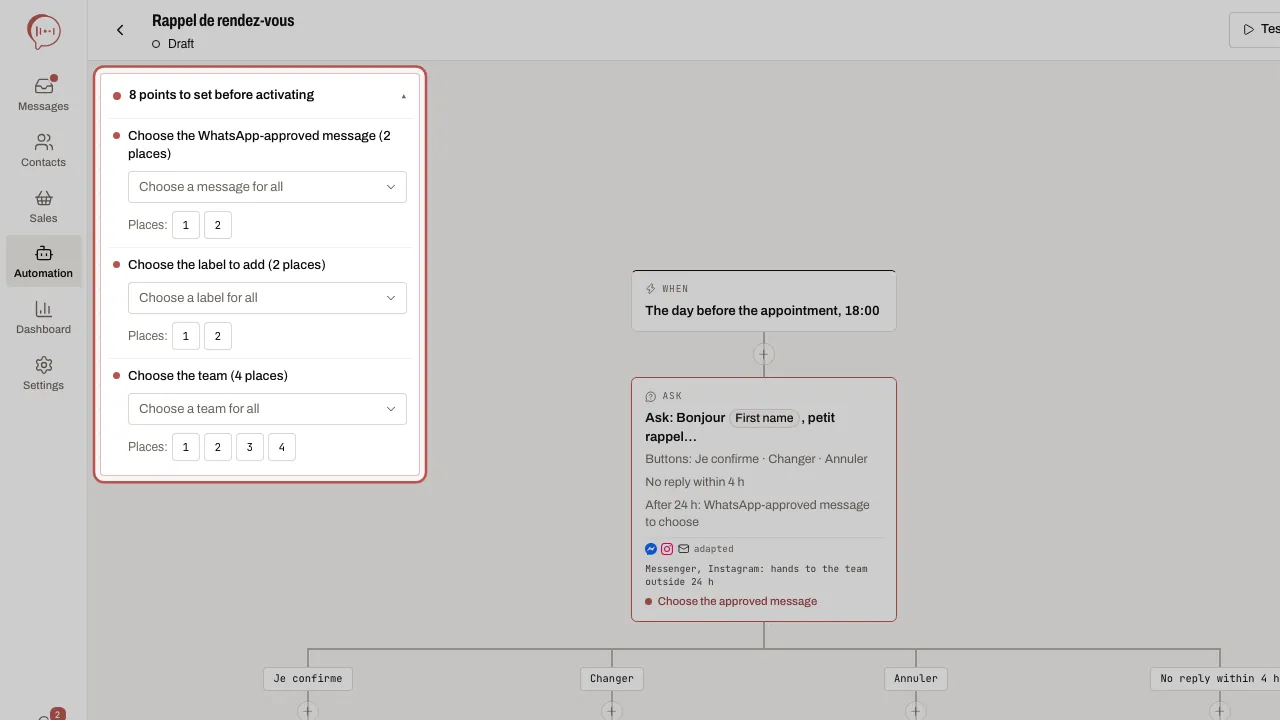
- Click a block to set it up in the right-hand panel. The + between two blocks opens Add a block: messages, Ask the agent, wait, condition, A/B test, actions, end.
- For a WhatsApp message, set If the 24-hour window is closed: Send a WhatsApp-approved message, Do not send and continue or Hand over to your team.
- Click Test: the simulator replays the scenario as the customer, without sending anything. Reply in their place, skip the waits, then Start again if needed. At an Ask the agent step, the simulator does not call your AI agent: choose what it would do, and its reply shows marked Simulated reply.
- When the box shows Ready to activate ✓, click Activate and confirm. A supervisor clicks Request activation: the administrators are notified.
A scenario started by your AI agent
When the When block is set to Started by the agent, your AI agent starts the scenario when it recognises a customer request.
- Click the When block, then choose Started by the agent in Event.
- In Customer requests that start this scenario, click Add a request: Appointment or booking, Order, Question or Other request.
- Activate the scenario. When a customer writes “I would like an appointment”, your AI agent replies with a short sentence, for example “Let me check the available slots.”, then the scenario takes over. In the conversation, a line says so: “Coucou started Appointment booking”.
Your AI agent starts the same scenario only once per conversation, until it is resolved. When the scenario ends, the AI agent takes the conversation back; if the scenario handed over, your team does. Without an AI agent on the channel, set When to Message received with keywords.
The Ask the agent step
The + offers Ask the agent, with three uses:
- Answer a question: in the middle of a scenario, the customer asks “how much is the oil change?”. Your AI agent answers from what it knows, then asks the last question again if the Answered exit stays empty (Then ask the last question again box).
- Understand a free reply: the customer writes “rather Thursday late morning” instead of tapping a button. Write your Choices: your AI agent puts the reply in one of them, or in Other reply. It only reads the customer’s last message.
- Write a draft: say What the agent should write, for example a quote follow-up. The draft shows in the conversation for your team, who send it or ignore it. It is never sent on its own.
Each step has an AI unavailable exit: your AI agent is paused, or the AI replies in your plan and your credits are used up. Left empty, No reliable answer and AI unavailable hand over to your team.
In the customer’s language
A message goes out in the customer’s language: the one they write in, otherwise the one on their contact card or from their number. The messages of ready-made scenarios, sign-up by trade and AI agents such as Veilleur exist in French, Spanish and English: as long as you do not change them, the right one goes out on its own, buttons included. A text you write or change goes out as it is: open Other languages under the message to write its translations. Outside the 24-hour window, the message approved by WhatsApp keeps its own language.
Related articles
- Follow and edit an active scenario You run an active scenario from its diagram: how many contacts enter it, where they stop, who is in progress.
- Send an interactive message (buttons, list, carousel, products) An interactive message lets the customer reply with a single tap: a button, a list row, a carousel card.
- Your AI agent on WhatsApp, Messenger, Instagram, Telegram Your AI agent answers your customers on WhatsApp, Messenger, Instagram and Telegram once the owner has turned it on and you have chosen, channel by…
- Coucou, Allô and Veilleur: your AI agents Coucou and Allô are the two looks of your AI agent, and Veilleur replies when you are closed. Set them up in three steps: set up, try, activate.