
Follow and edit an active scenario
You run an active scenario from its diagram: how many contacts enter it, where they stop, who is in progress. You can edit it without disturbing the contacts already on their way.
Steps
- Open Automation › Scenarios and click the scenario. On a computer, Statistics is already turned on: each block shows its contacts entered or its messages sent, and each branch its share, for example “OK · 81 %”.
- Choose the period at the top: 7 days, 30 days or Since activation.
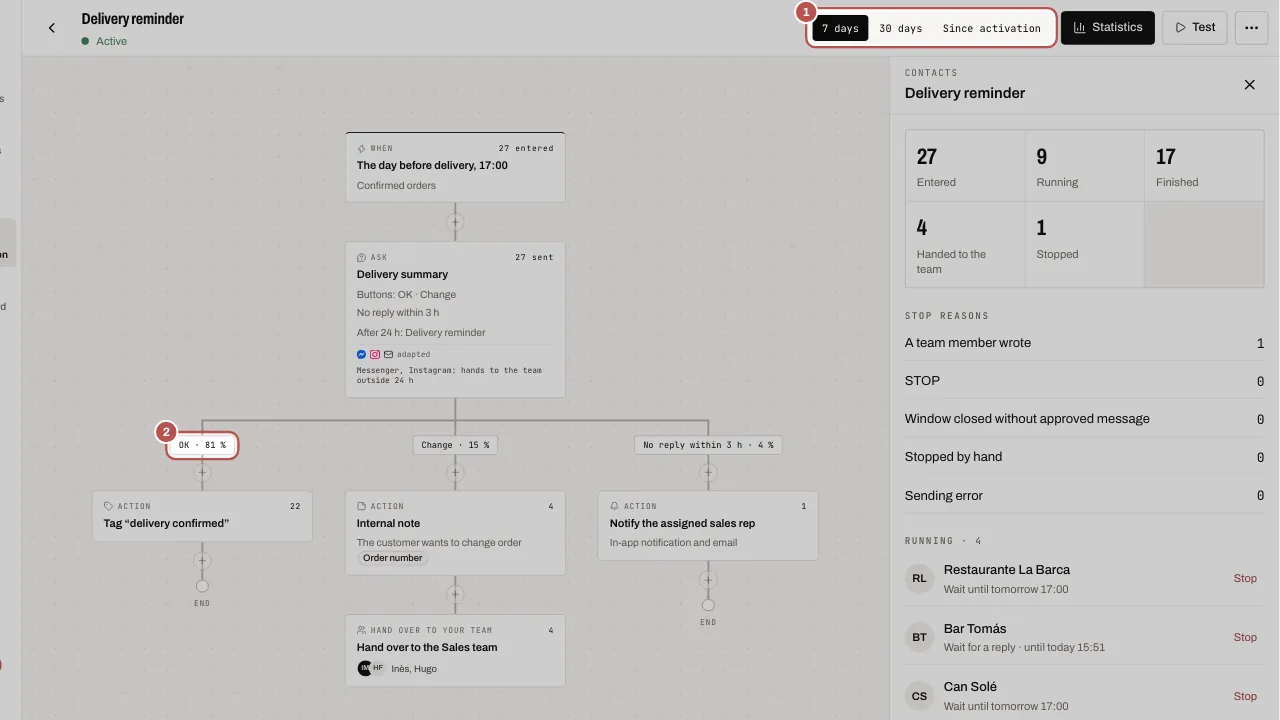
- The Contacts panel on the right sums up: Entered, Running, Finished, Handed to the team, Stopped. The Stop reasons say why: A team member wrote, STOP, Window closed without approved message, Stopped by hand, Sending error.
- Under Running, each contact shows their step. Click Stop to take them out of the scenario.
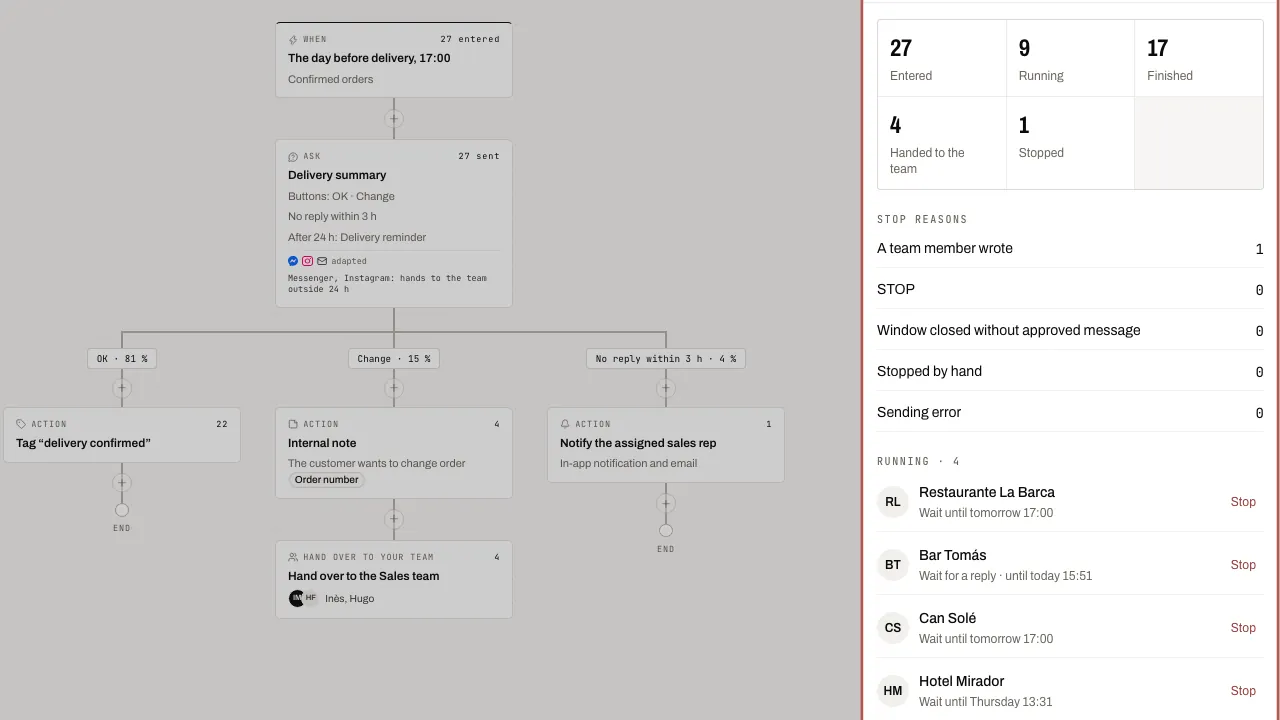
- To edit, click a block and change its setting. Your changes are saved on their own in a draft: the label Unpublished changes appears, and the live version keeps running.
- Click Publish changes and confirm. Contacts already in progress finish on the old version; new ones follow the new version.
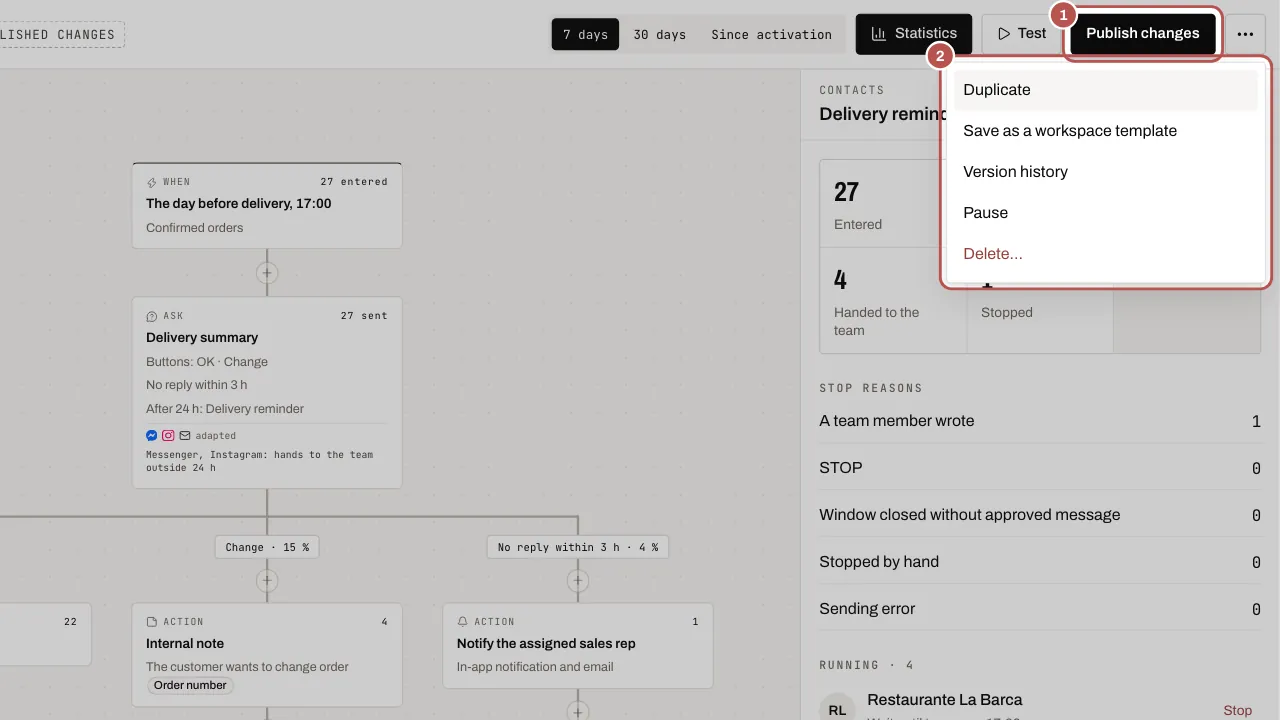
- In More actions (⋯), Version history lists each published version: Go back to this version puts it back in the draft, ready to publish.
- Pause, in the same menu, stops new entries. Choose what happens to the contacts in progress: Freeze them: they continue on resume, or Stop them. Resume restarts the scenario.
When a scenario stops on an error
- The conversation thread shows “The “…” scenario stopped on an error: reply to the customer yourself”. The WYP.chat team is alerted at the same time.
- A scenario message refused by WhatsApp after sending leaves the line “Message from the “…” scenario not delivered” and the team is notified.
- If the person who created or changed the scenario has left the workspace, its messages are sent in the name of the workspace owner. The owner and administrators get a notification, once per scenario, and the change is recorded in the log.
Related articles
- Create a scenario Create a WYP.chat scenario from the gallery or from scratch, started by a message or by your AI agent, test it in the simulator, then activate it.
- Send an interactive message (buttons, list, carousel, products) An interactive message lets the customer reply with a single tap: a button, a list row, a carousel card.
- See who is replying to the customer The “who is replying” badge in Messages shows who holds the conversation: your team, a scenario, your AI agent or another tool, and how to take over.
- Your AI agent on WhatsApp, Messenger, Instagram, Telegram Your AI agent answers your customers on WhatsApp, Messenger, Instagram and Telegram once the owner has turned it on and you have chosen, channel by…
Learn more Automate WhatsApp Business with scenarios