
Veilleur: replying when you are closed
Veilleur is the AI agent that replies right away to a customer who writes while you are closed, with the reopening time (“tomorrow at 9 am”, “on Monday at 9 am”), then passes the request to your team for when you open. It is an AI agent in its own right, included in every plan: it works alongside Coucou or Allô, each with its own mission.
Add Veilleur
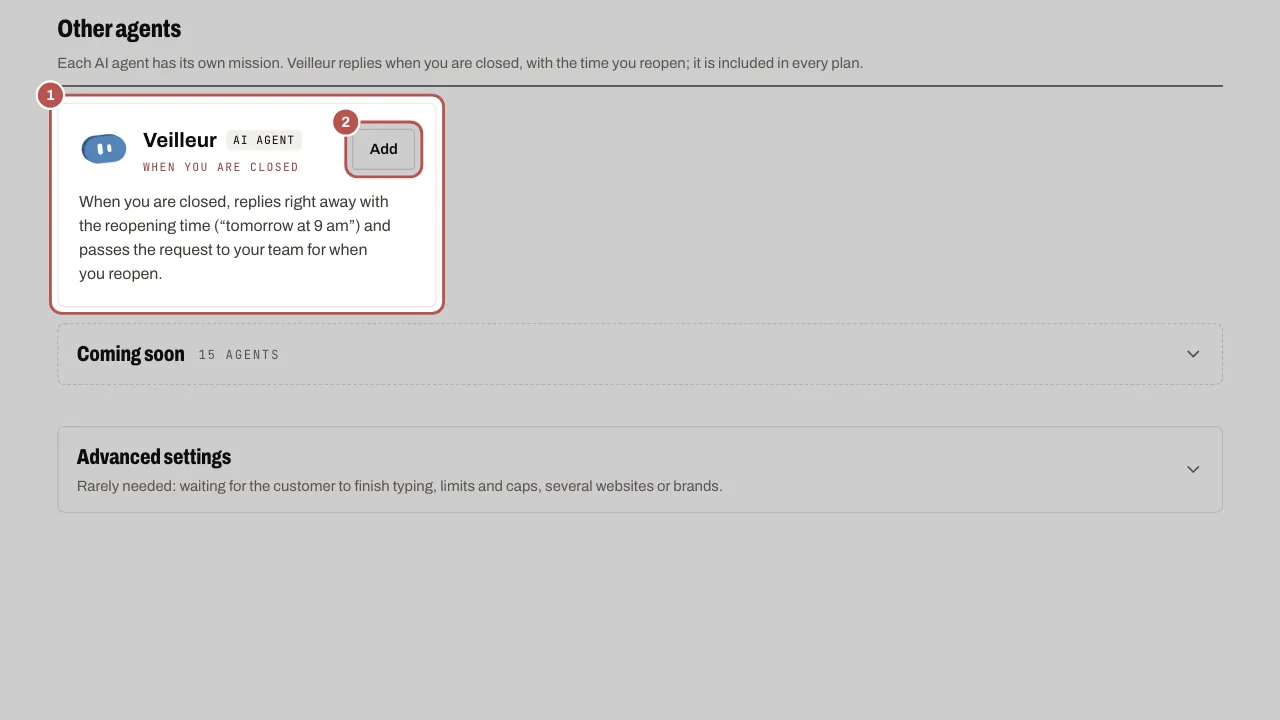
- Open Automation › AI agents. In Other agents, click Add on Veilleur’s card.
- Your opening hours: keep your current hours, or choose Monday to Friday (9 am to 6 pm), Monday to Saturday (9 am to 7 pm) or Tuesday to Saturday, lunch and evening. The choice is already made from your line of business.
- Your away message: short, with the reopening time; asking what the customer needs; or, for a restaurant, asking for the day, time and number of guests.
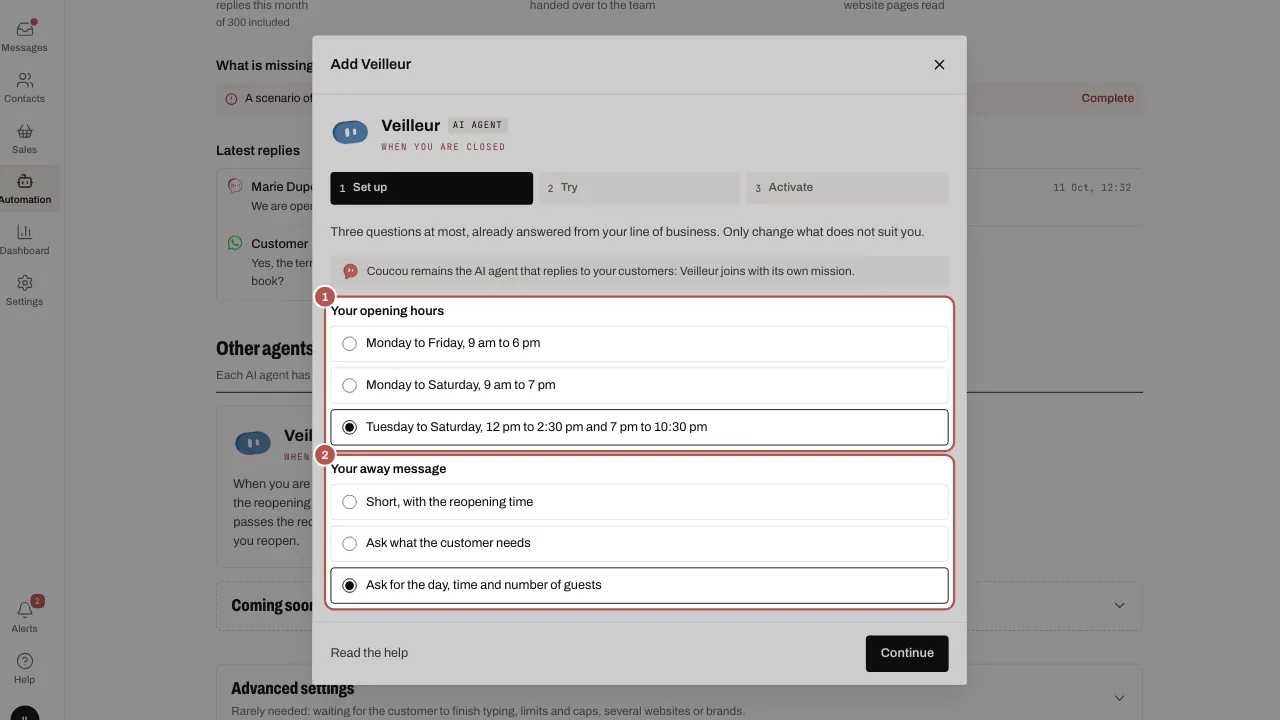
- Try shows the message as the customer reads it. Click Continue, read What we set up, then click Activate.
What Veilleur installs
- The Outside opening hours scenario, active right away: it only writes to a customer who wrote to you, with a fixed text you have read.
- Your opening hours, if you chose some, once a channel is connected.
- A team called Team to receive requests, only if your workspace has none yet and your plan includes teams (Team or Pro).
In the inbox, the Who is replying to the customer badge shows Veilleur’s look while its scenario holds the conversation.
Keep an eye on Veilleur
Once added, Veilleur’s card, in Other agents, shows its status (Running or Paused) and its away messages sent this month. Settings opens the scenarios. Pause only stops its scenario, until you click Resume: the AI agent that replies to your customers is not affected. Remove undoes what Veilleur set up: the Outside opening hours scenario is paused then deleted, your hours are put back as they were and the team it created is removed if nobody uses it. Whatever you have changed since is kept.
Voice notes, photos and follow-up
- A voice note, photo, video or document received while you are closed triggers the away message, just like a text.
- The away message does not count as a reply from the team: the conversation stays waiting and the first response time runs until a team member replies.
- If the scenario stops on an error, the thread shows “The “Outside opening hours” scenario stopped on an error: reply to the customer yourself”.
- If WhatsApp refuses the away message after sending, a line says so in the thread, the team is notified and the message’s credits are returned.
In the customer’s language
The away message goes out in the customer’s language: the one they write in (“Hello” gets the message in English), otherwise the one on their contact card or from their number. The messages Veilleur suggests exist in French, Spanish and English, and the right one goes out on its own. If you write your own text, it goes out as it is: add its translations in the scenario, in the message’s Other languages section (see Create a scenario).
If the customer writes again
Veilleur replies once a day to the same customer. If they write again and nobody on the team has replied, your AI agent takes over if it replies on its own on that channel; otherwise an acknowledgement is sent once and the team is notified. See Your AI agent on WhatsApp, Messenger, Instagram, Telegram, If nobody on the team replies section.
Related articles
- Coucou, Allô and Veilleur: your AI agents Coucou and Allô are the two looks of your AI agent, and Veilleur replies when you are closed. Set them up in three steps: set up, try, activate.
- Create a scenario Create a WYP.chat scenario from the gallery or from scratch, started by a message or by your AI agent, test it in the simulator, then activate it.
- Organise the team: teams, response times, quick replies, tags Teams share out the conversations, response times prevent anything being forgotten, and quick replies and tags save everyone time.
- Your AI agent on WhatsApp, Messenger, Instagram, Telegram Your AI agent answers your customers on WhatsApp, Messenger, Instagram and Telegram once the owner has turned it on and you have chosen, channel by…