
Coucou, Allô and Veilleur: your AI agents
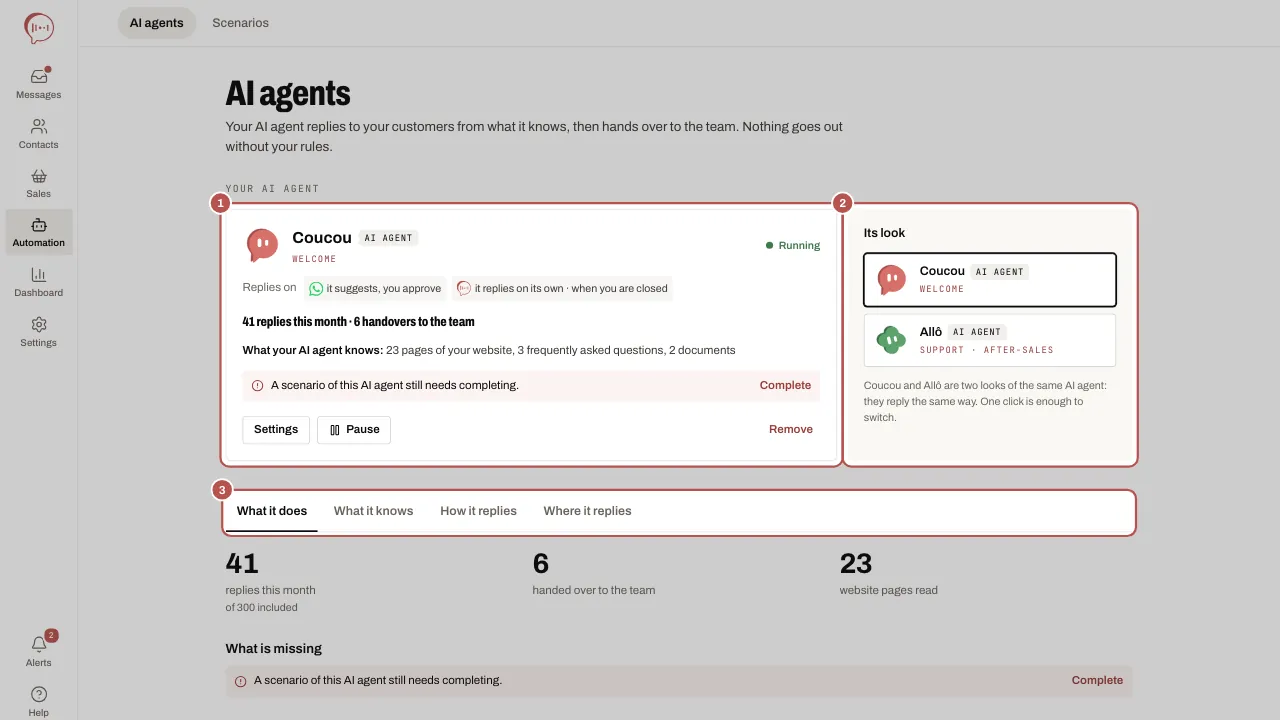
The AI agents page (Automation › AI agents) brings your AI agents together: Coucou (Welcome) or Allô (Support · After-sales), the AI agent that replies to your customers, and Veilleur (When you are closed), which replies when you are closed. Coucou and Allô are two looks of the same AI agent: it answers from what it knows and hands over to your team. Veilleur is an AI agent in its own right, included in every plan. The agents coming soon are in the folded Coming soon section.
Read the transcript
In the morning, on the website chat, a customer asks whether you are open on Saturday: Coucou replies “Yes, Saturday from 9 am to 1 pm. The address is on the Contact page.”, marked “Answer taken from your FAQ”. Allô answers a question about returning an item and cites your returns policy (PDF). In the afternoon, a customer asks for a quote for 12 workstations: Coucou hands them over to Inès from the team, who takes over the conversation. In the evening, at 21:40, on the website chat, Veilleur replies “Thanks for your message! We are closed right now. We will reply tomorrow at 8 am.” and passes the request to your team for when you reopen.
The film also shows, as a preview, the agents coming soon: Créneau, Colis, Chiffre, Ticket, Agrafe and Bravo. Coucou, Allô and Veilleur are available today.
Your AI agent: its status card
At the top of the page, Your AI agent shows Coucou’s or Allô’s card:
- its status, Running or Paused;
- Replies on: each channel’s icon with its choice (it suggests, you approve, or it replies on its own, and “when you are closed” if the checkbox is ticked), or Not replying on any channel yet; when paused, the card says Off for the whole workspace;
- its figures for the month, for example “12 replies this month · 3 handovers to the team”;
- the What your AI agent knows: line, for example “23 pages of your website, 0 frequently asked questions”, with Add 5 questions as long as the FAQ is empty;
- reminders when something is missing: “Your AI agent does not know any frequently asked question yet.”, “A scenario of this AI agent still needs completing.” with Complete, or “Choose where it replies: it is not turned on for any channel.” with Choose channels.
Settings opens the Where it replies tab. Pause stops your AI agent for the whole workspace: your team replies on its own until you click Resume. Remove only shows if its pack has been activated: its scenarios are paused then deleted, and its settings put back as they were, except what you have changed since.
Its look: Coucou or Allô
Next to the card, Its look offers Coucou and Allô. One click is enough to switch, and the choice is saved straight away: they are two looks of the same AI agent, which reply the same way. As long as its pack is not activated, Set up in 3 questions opens the Add window.
Choose where it replies, channel by channel
In the Where it replies tab, each connected channel has its own choice: It replies on its own, It suggests, you approve or Never. With It replies on its own, the Only when you are closed box lets the team reply during your opening hours. Without opening hours the box does not apply: your AI agent replies at any hour, and the page tells you. The choice is saved when you click Save. More: Your AI agent on WhatsApp, Messenger, Instagram, Telegram.
Set up in three steps

- Open Automation › AI agents. Click Set up in 3 questions under Its look, or Add on Veilleur’s card, in Other agents.
- Set up: answer three questions at most. They are already answered from your line of business; only change what does not suit you. For Coucou and Allô: When does your AI agent reply? (When you are closed or All the time), If asked for a price? (Give the price it knows or Hand over to your team) and If an existing customer asks about their case? (Answer with what it knows or Hand over to your team). For Veilleur, see Veilleur: replying when you are closed.
- Try: click one of the ten test messages, or Open the test. Try a question, in the What it knows tab, opens in a new tab with the question already typed: nothing is sent to a customer.
- Activate: the window has two columns. What we set up lists each item with its status (To do, Already set, Later, To set up). What is left for you to do, with the number of points, lists what is still missing: a channel that receives your customers, what your AI agent knows, your AI agent turned on for WhatsApp by the owner. Also read the Safe settings and the number of messages in a typical journey, then click Activate.
What activation does
- Coucou or Allô becomes your AI agent’s look, with your answers to the questions. Only one AI agent replies to your customers: adding Allô replaces Coucou, and the other way round. Your answer to When does your AI agent reply? is the starting point for the Only when you are closed checkbox; you then change it channel by channel in Where it replies.
- On WhatsApp, your AI agent suggests its replies and you approve. If the owner has not turned your AI agent on for WhatsApp yet, the line stays To set up: they do it in the Where it replies tab.
- The pack’s scenarios are installed. Those that reply to a customer who wrote to you are active right away; follow-ups and review requests stay paused. Coucou and Allô also install Appointment booking, started by your AI agent when a customer asks for an appointment: it turns on as soon as the booking link is set in Settings › Website chat, Booking tab. Allô also prepares a WhatsApp-approved message (“order ready”) as a draft, once WhatsApp is connected.
Other agents
Below the tabs, Other agents shows Veilleur: each AI agent has its own mission, and Veilleur replies when you are closed, with the time you reopen. Once added, its card shows its status, its away messages sent this month, Settings (which opens the scenarios), Pause (which only stops its scenario) and Remove.
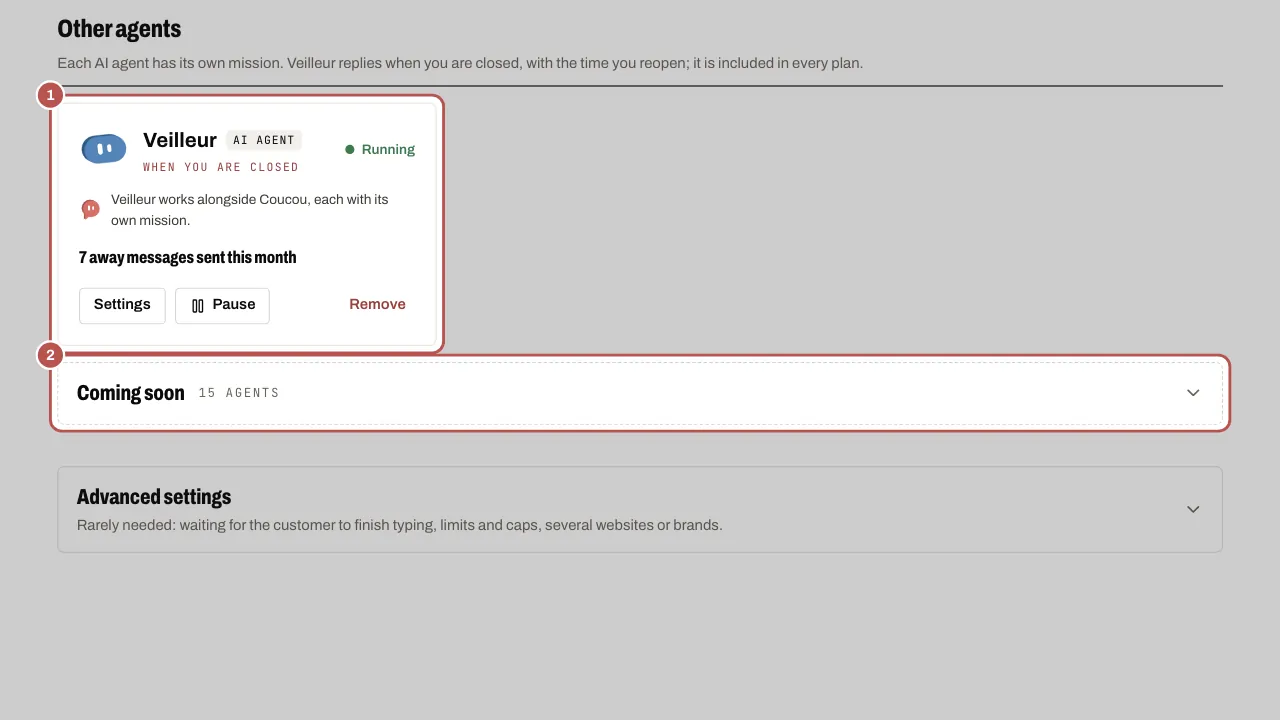
Open Coming soon to see the 15 agents on their way. Click Notify me on the ones you are interested in: it helps us choose the next ones.
Related articles
- Veilleur: replying when you are closed Veilleur replies to customers who write while you are closed, with the reopening time, then passes the request to your team for when you open.
- Set up your AI agent: what it knows and where it replies Your AI agent is set up on a single page, Automation › AI agents, with four tabs: What it does, What it knows, How it replies and Where it replies.
- Your AI agent on WhatsApp, Messenger, Instagram, Telegram Your AI agent answers your customers on WhatsApp, Messenger, Instagram and Telegram once the owner has turned it on and you have chosen, channel by…
- Several sites or brands: what your AI agent knows Create one base per website or brand: your AI agent answers only from what the right base knows, never from what another site’s base knows.
- Getting started: your business and the first steps Right after you create your workspace and turn on two-factor authentication, WYP.chat asks about your business and prepares the workspace for you.