
Connect your WhatsApp Business number
Until Meta approves WYP.chat, our team sets up this connection with you. The steps below describe it.
WYP.chat connects to WhatsApp through Meta’s official API. Allow ten minutes, with administrator access to your company’s business portfolio at Meta.
Steps
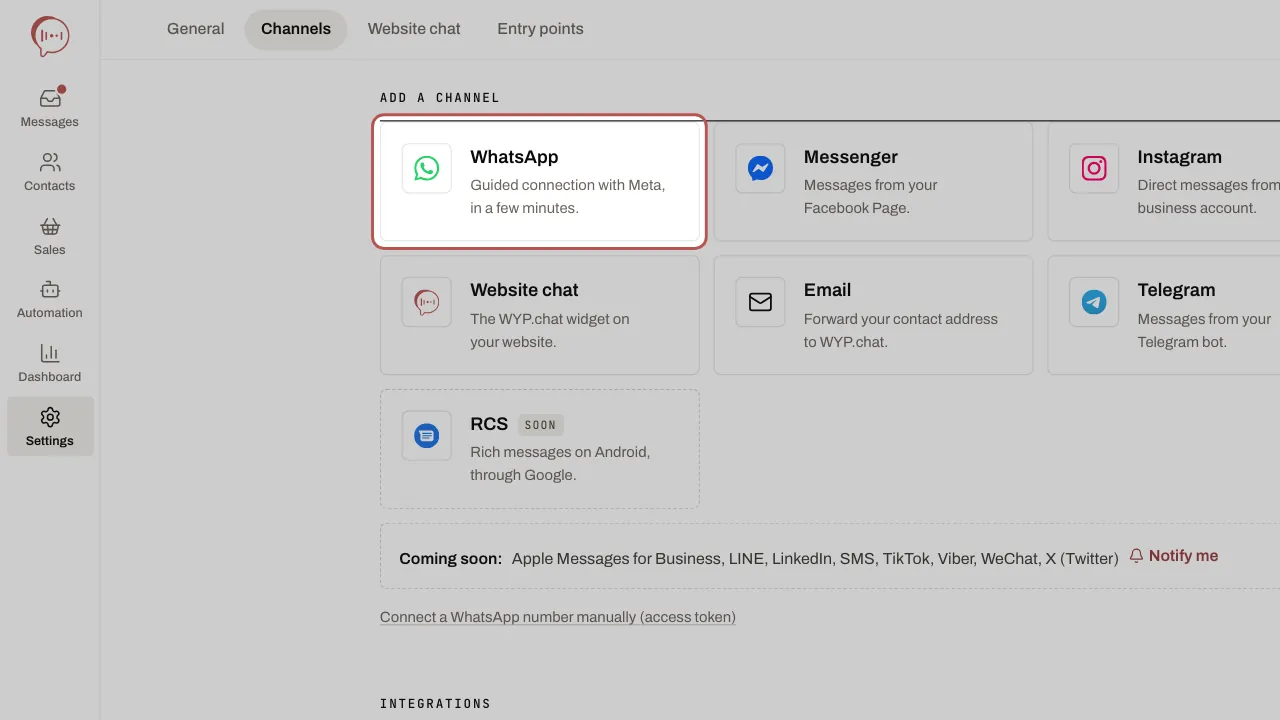
- Open Settings › Channels. The first time, read WhatsApp rules: prohibited sectors, tick the attestation, then click Confirm. An owner or an administrator does this once for the workspace.
- Click Add a channel, then the WhatsApp card.
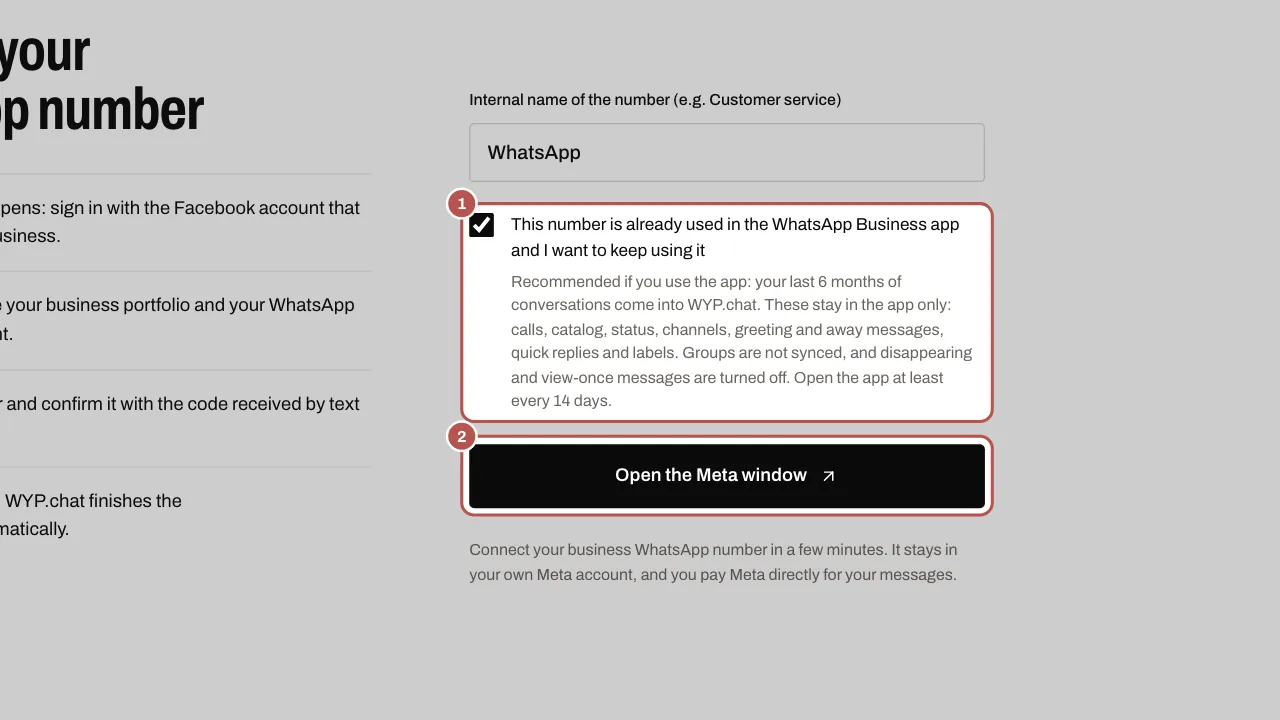
- Give the number an internal name (for example “Customer service”). If you want to keep the WhatsApp Business app on your phone, tick This number is already used in the WhatsApp Business app and I want to keep using it.
- Click Open the Meta window. Sign in with the Facebook account that manages your company, choose or create your business portfolio and your WhatsApp Business account, add your number and confirm it with the code you receive by text message or call.
- Go back to WYP.chat: the connection finishes on its own and the number appears in Connected, with the status Operational.
- If the number is protected by a PIN (two-step verification), its activation may fail: enter the 6-digit PIN on its row, then click Activate number.
Related articles
- Keep the WhatsApp Business app with WYP.chat You can keep the WhatsApp Business app on your phone: the same number works both in the app and in WYP.chat, which is called coexistence.
- Write to a customer after 24 hours After 24 hours without a message from the customer, WhatsApp only lets you send a template it has approved.
- What you pay Meta on WhatsApp Meta charges your own card directly for WhatsApp messages beyond its free allowances. Rules, October 2026 rates for the UK, France and Spain, examples.
- Prepare a template for your campaigns A WhatsApp campaign always sends an approved template. Create it in Sales › Templates, pick Marketing or Utility and send it to WhatsApp for approval.