
WhatsApp newsletter: create, send and track
A WhatsApp newsletter is a sign-up link or QR code and the list of people who subscribed by using it: each send you prepare goes to those subscribers only, and a STOP is enough to unsubscribe. It builds on two things that already exist: sign-up is an “Offers sign-up” entry point, which keeps each person’s consent with its proof, and each send is a campaign.
Create a newsletter
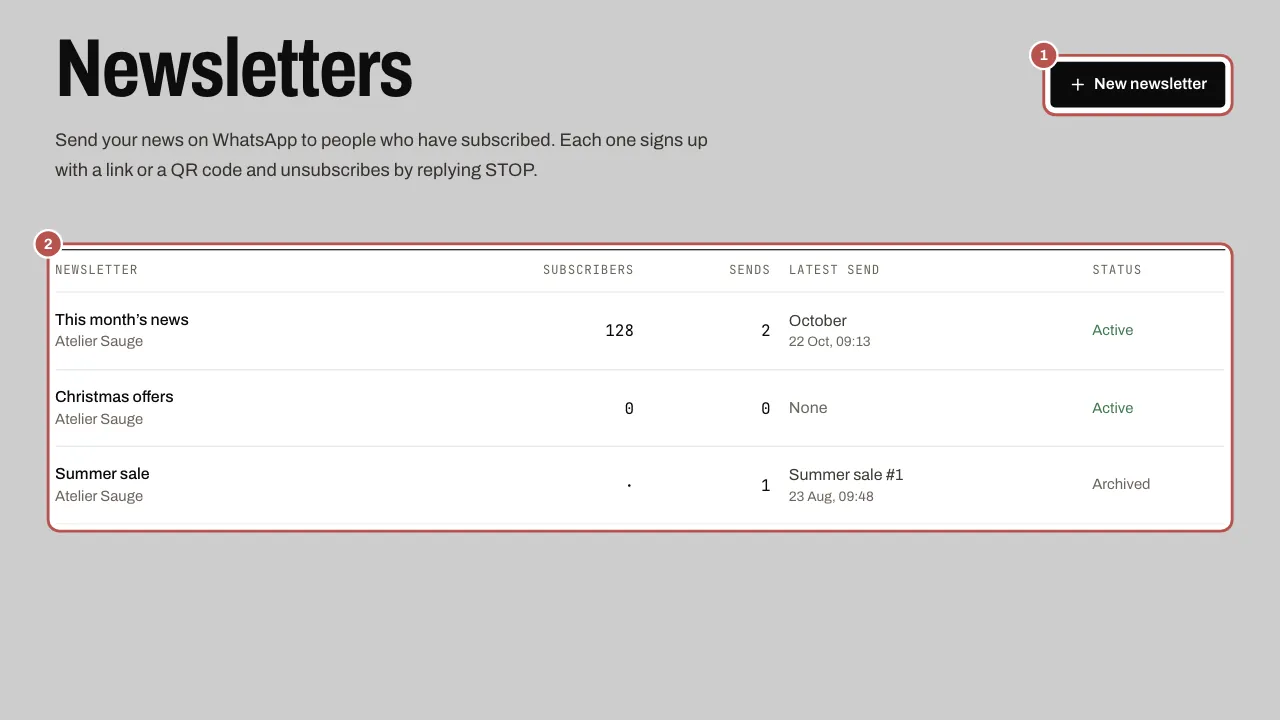
- Open Sales › Newsletters and click New newsletter. If no WhatsApp number is connected yet, the screen asks you to connect one first.
- Enter a Newsletter name (40 characters at most). Only your team sees it: you will also find it as a “Newsletter · name” tag on each subscriber’s contact card.
- Choose the WhatsApp number: sign-ups arrive on this number, and the newsletter’s sends go out from it.
- Choose the Language of the sign-up wording and enter Your business name, which appears in the wording. Under What your customers will send to subscribe you can read the exact text. It is fixed: it is kept as it is, with the date and version, as proof of consent.
- Click Create the newsletter. WYP.chat creates the tag, the “Offers sign-up” entry point and the newsletter in one go. A name already used by a newsletter or a tag is refused.
Get your customers to subscribe
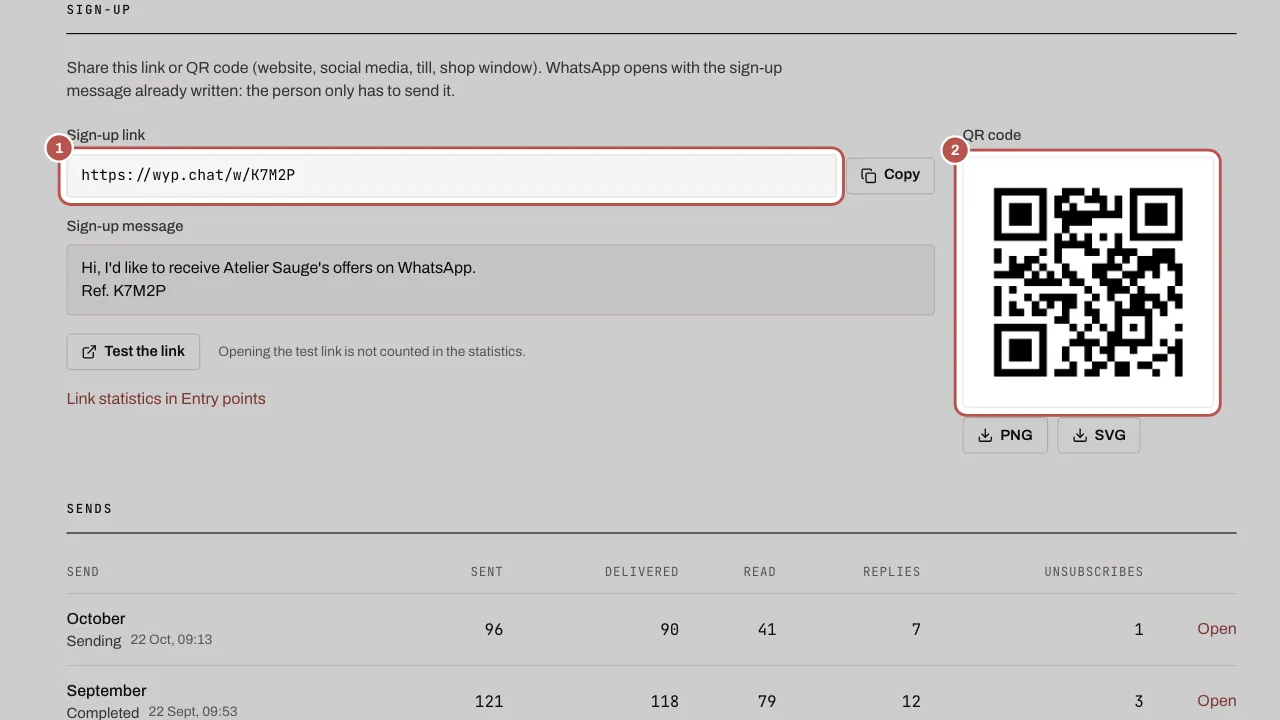
Open the newsletter. The Sign-up section gives the Sign-up link (with a Copy button), the Sign-up message and the QR code, which you can download as PNG or SVG.
- Share the link or QR code: website, social media, till, shop window.
- WhatsApp opens with the sign-up message already written. The person only has to send it.
- If the message arrives unchanged, their consent is recorded with its proof (text received, wording version, time) and the newsletter’s tag is added. By default they receive a confirmation that reminds them they can reply STOP.
- If they edited the message, the tag is added but no consent is recorded: they are not subscribed, and a note says so in the conversation.
- Click Test the link to try it: a test is not counted. The link’s detailed statistics are in Settings › Entry points.
See your subscribers and those who left
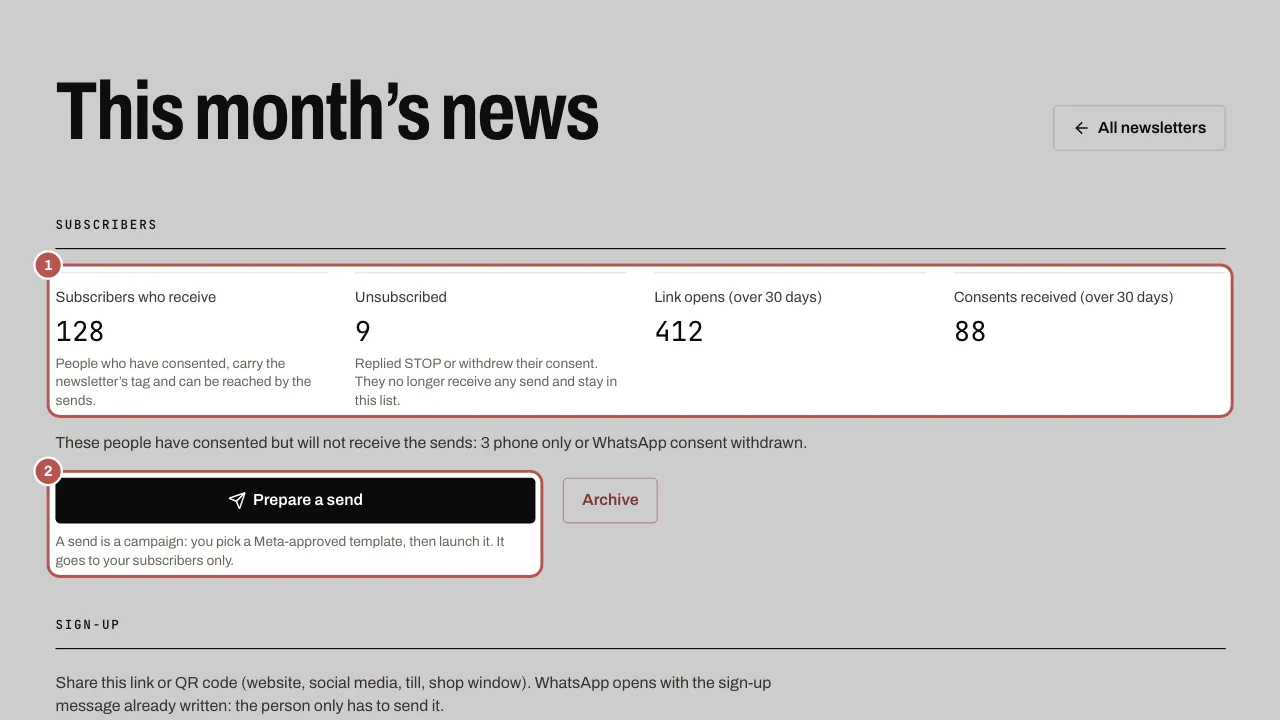
At the top of the page, the Subscribers section counts:
- Subscribers who receive: people who have consented, carry the newsletter’s tag and can be reached by the sends.
- Unsubscribed: people who replied STOP or withdrew their consent. They no longer receive any send and stay in this list.
- Link opens and Consents received, over 30 days.
A line also names the people who have consented but will not receive the sends, with the reason (for example “phone only or WhatsApp consent withdrawn” or “blocked”). At the bottom of the page, People has two tabs, Subscribers and Unsubscribed: the 200 most recent, with the date they subscribed or left.
Prepare and launch a send
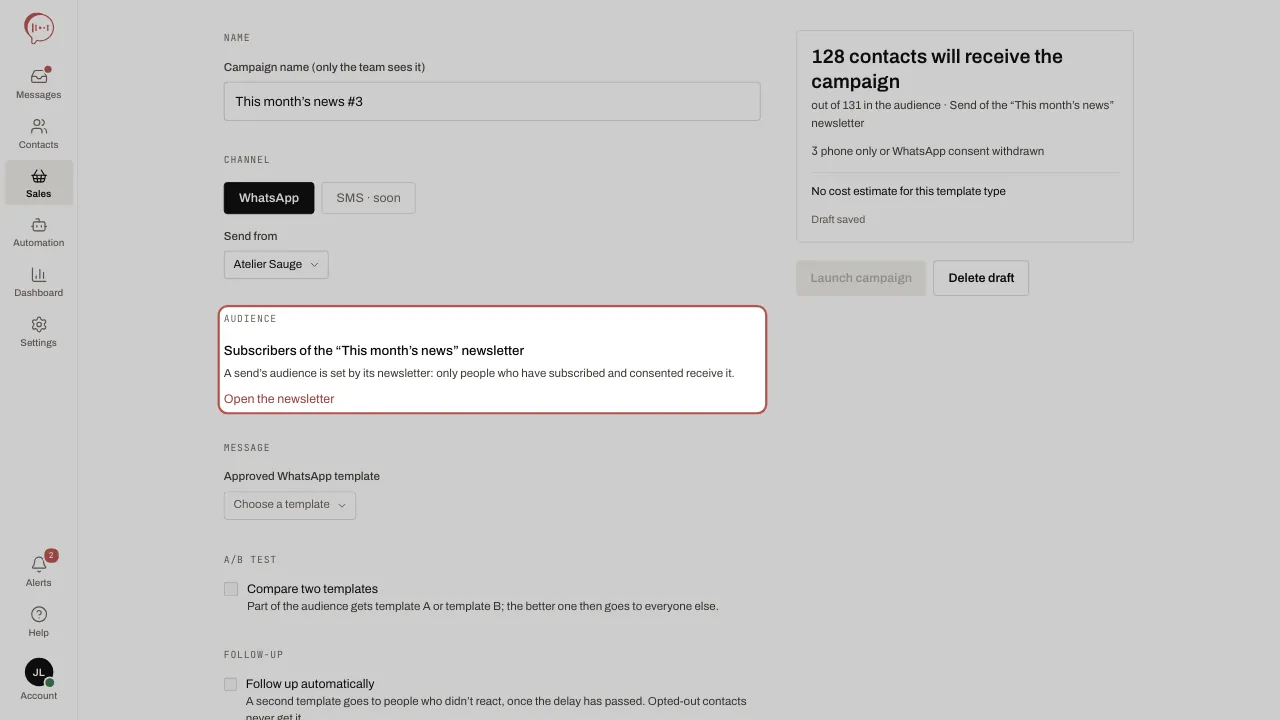
- On the newsletter’s page, click Prepare a send. WYP.chat creates a draft campaign named after the newsletter (“This month’s news #3”), on the newsletter’s WhatsApp number, and opens it.
- The audience is already chosen: Subscribers of the “…” newsletter. It cannot be changed, neither by a segment nor by a filter: only people who have subscribed and consented receive the send.
- Do the rest as for any campaign: pick a Meta-approved template, fill in the variables, Send a test, choose to send now or on a date, then Launch campaign (or Schedule). A supervisor clicks Request approval: an administrator launches the send. The details are in Send a WhatsApp campaign.
- Subscribers are read again when the send starts: a scheduled send goes to the people subscribed at that moment, without those who left in the meantime.
While no subscriber can receive a send, or if the newsletter is archived, Prepare a send stays clickable and writes what is missing under the button, without sending anything.
Read the figures
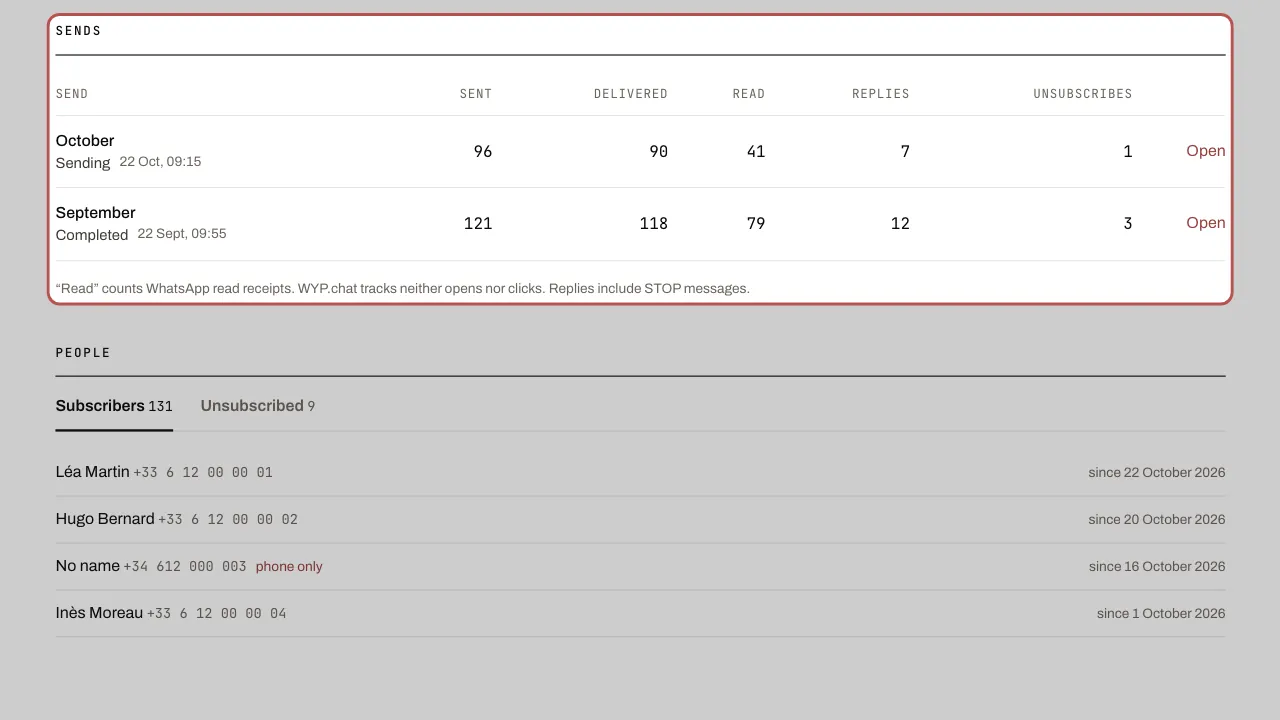
The Sends section of the page lists each send with Sent, Delivered, Read, Replies and Unsubscribes. These are the campaign’s figures: Open takes you to its page, which adds the exclusions and failures.
- Read counts WhatsApp read receipts. The figure is an underestimate, because some customers switch read receipts off.
- Replies include STOP messages.
- Unsubscribes counts the people who left after that send.
WYP.chat calculates no open rate, as you see for an email, and does not track clicks: “Read” is the only measure of reading, and it is WhatsApp’s own.
Unsubscribing, consent and archiving
- STOP: a person who replies STOP, who switches messages off in WhatsApp or whom your team removes receives none of the following sends and is counted among those unsubscribed. They keep the newsletter’s tag, which is the trace of their sign-up. They can come back by sending the sign-up message again: consent given through a link lifts a STOP the customer wrote, never an opt-out made in WhatsApp’s settings.
- Only the link counts as a sign-up: a customer who types “newsletter” by hand is not subscribed, because only the link’s message carries the consent wording and its reference.
- Archive: click Archive and confirm. The sign-up link is switched off (it then opens WhatsApp without a reference, so without consent or tag), scheduled sends are cancelled and drafts can no longer be launched. A send already under way runs to the end; you can stop it from its campaign. Your subscribers, their consents and the tag are kept.
- A newsletter can be archived but not deleted: once archived it stays in the list, keeps its name and cannot be unarchived. While it exists, its tag cannot be deleted and its entry point remains a sign-up.
Related articles
- WhatsApp links and QR codes: entry points An entry point is a link or a QR code for one medium: shop window, till, flyer, business card, social media, website.
- Send a WhatsApp campaign A campaign sends an approved template to the contacts in a segment. Replies arrive in the inbox, like a normal conversation.
- Prepare a template for your campaigns A WhatsApp campaign always sends an approved template. Create it in Sales › Templates, pick Marketing or Utility and send it to WhatsApp for approval.
- WhatsApp consent form on your website The WhatsApp consent form goes on your website: visitors leave their name and number, choose “WhatsApp and phone” or “Phone only”, and can tick a…
- Import your contacts and their permission for offers The Contacts screen brings together all your contacts, whether they come from a conversation or a file.